Blog · Meetings
How to transcribe a meeting without a bot joining the call
You can transcribe a meeting without a bot by recording it on your own computer: your microphone for your side of the call, and the computer's system audio for everyone else. If the speech recognition runs on the same machine, the audio never has to leave it either — nothing joins the call, and nothing is uploaded to be transcribed.
That is how meeting mode in Deixis works on Windows, and on Android from the phone's microphone. This post covers why so many tools send a bot, what "no bot" does and does not promise, what you have at the end of a meeting, and the one job a bot used to do for you that is now yours.
Why meeting tools send a bot
A cloud notetaker transcribes on its own servers, so it has to get the audio of your call there. The simplest way to do that without installing anything on your computer is to join the call as a participant: the meeting platform streams the conversation to the bot as it would to any attendee, and with a connected calendar the bot can turn up to every meeting on its own.
The cost is that everybody sees it. Fireflies, whose product is its Notetaker bot, is asked in its own knowledge base whether the bot can be hidden, and answers: "No. Fireflies is always visible in the participant list to ensure compliance" (as checked on 14 September 2026). People notice a bot, and some will ask for it to be removed.
No bot is not the same as local
Several tools now avoid the bot by recording on your own computer instead. That is a real improvement for everyone else on the call, but it is not the same as keeping the conversation on your machine. As each company's own pages read on 14 September 2026:
- Granola does not join the call — its help centre says "No bot joins your meeting" — but the audio streams to transcription providers while the meeting runs. Its security page names "Deepgram and Assembly", and Granola says the audio is deleted once transcription is complete.
- tl;dv has a desktop app that records the system audio so that, in its words, "No bot joins the call". The recording still goes to tl;dv's servers, which its security page says are in Europe.
- Fireflies has a no-bot path in its desktop app, and the audio still goes to Fireflies to be transcribed.
- Fathom offers bot-free capture in beta, and its own guide describes that choice as being on Mac. On Windows, a Fathom meeting is recorded by a bot that joins the call.
- Krisp comes closest: its pages describe on-device English transcription. Its privacy policy also says the meeting assistant may store transcripts, recordings and summaries on its servers.
So the useful question to ask a no-bot tool is where the speech recognition happens, and where the transcript is kept afterwards. Each tool has its own comparison page: Granola, Fireflies, Fathom, tl;dv and Krisp.
Recording both sides on your own machine
The local approach needs two audio sources — your microphone, and the sound the computer is playing, which is where the other people on the call are — and a speech model on the same machine, so the recording is transcribed where it was made.
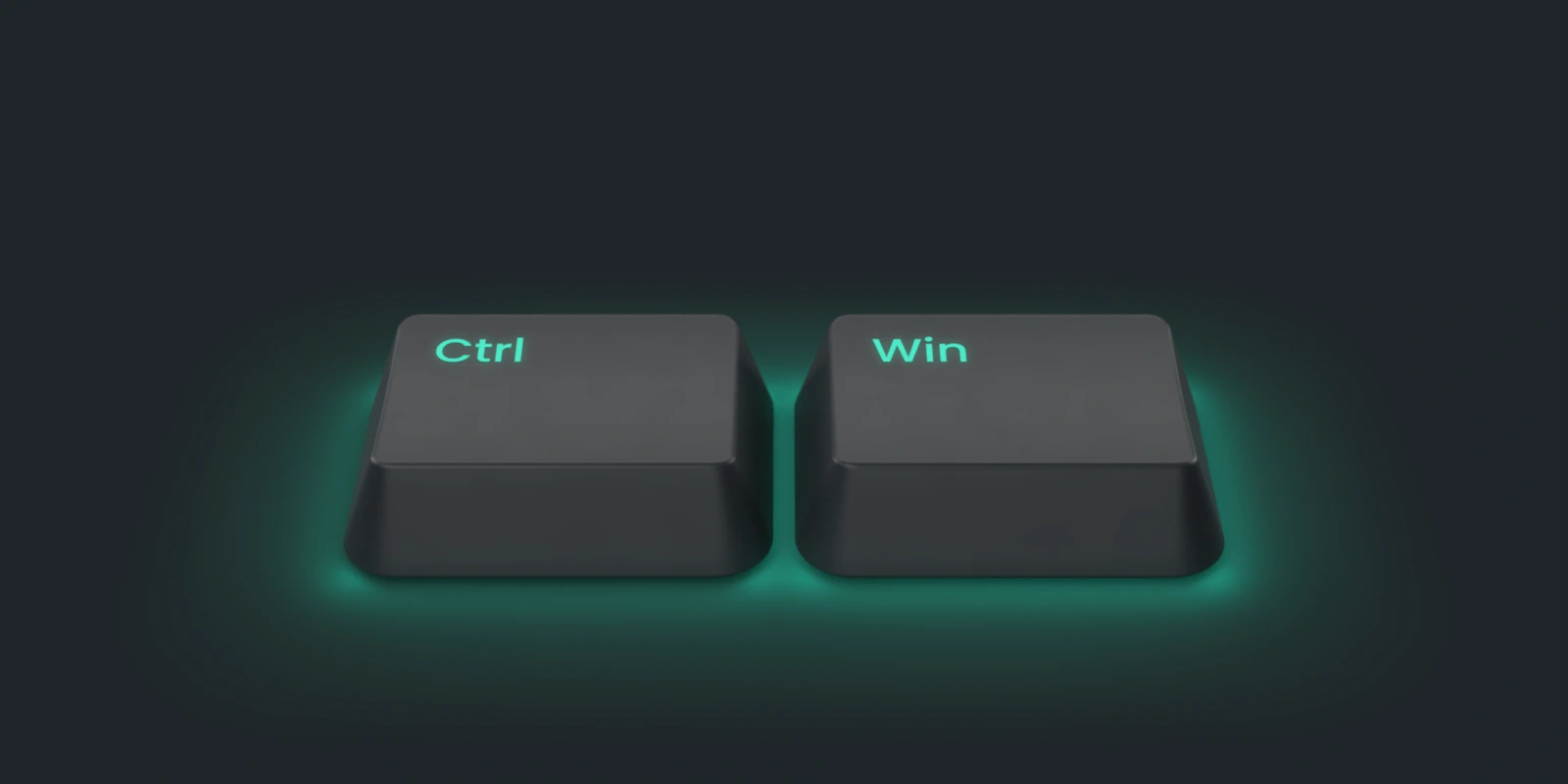
In Deixis on Windows, hold Ctrl+Win and press M, or use the tray item, or the record button on
the Meetings tab. Deixis records the microphone and, when it can, the system output, and
transcribes both on your own processor. Press again to stop. While a meeting runs, the tray icon
carries a red dot and its menu counts the elapsed time. The meeting mode
documentation has the full detail.
On Android, Deixis records meetings from the phone's microphone and transcribes them on the phone as they run, with notes — which suits a meeting in a room. The Mac app and the iPhone keyboard do not record meetings; the platforms page lists what each one does.
Worth knowing before your first real call:
- Wear headphones if you can. Your microphone hears the speakers too, so on open speakers the other side leaks into your own transcript. Deixis does not do echo cancellation.
- System audio is not always available. Some sound devices cannot be captured. Deixis then records your microphone only, says so, and notes it in the session rather than failing the meeting.
- English only. The speech models Deixis ships are English models. A meeting in another language will record, but it will not transcribe usefully.
- It starts when you start it. Nothing watches your calendar; you start it yourself.
- Dictation always wins. If you dictate during a meeting, the meeting's transcription yields to you, so typing by voice stays fast.
Where the files land
On Windows each meeting is a folder under %USERPROFILE%\.deixis\sessions\, named by the time it
started:
transcript.md— the merged, readable transcript, with a timestamp on every linetranscript.mic.jsonlandtranscript.sys.jsonl— each side's lines as they were transcribedaudio\— your microphone and the system output as WAV files, one per minutemeta.json— the devices, sample rates, model, start and endnotes.md— the summary, decisions, action items and open questions, once notes are set up
The audio stays in that folder. Deixis does not upload a meeting's audio under any setting or on any
plan, and a meeting recording cannot even be shared as a link. Recording, transcribing and writing
transcript.md need no account, no key and no network, and they are free. Each session is named
from what was said in it, and a name you type yourself is never overwritten. Because the audio is
saved a minute at a time, a crash costs at most a minute. There is no shared workspace across a
team: sessions are folders on your disk, and backing them up is your job.
What notes need
The transcript is what was said. Notes are written by a language model, and you choose where it runs:
- In the cloud, run by Deixis. Pro, at $49 a year or $10 a month, with no key to obtain.
- In the cloud, on your own key. Set your own provider key and the request carries it. Deixis charges nothing; your provider bills you.
- On your own hardware, on Windows. Point Deixis at a model server on your machine, such as Ollama, and notes are written without reaching a network.
With a cloud model, the transcript leaves your machine at the end of the meeting, to the endpoint you
configured. If you have not named the session yourself, the opening of the transcript — about 1,500
characters — goes to the same place so a model can title it. The audio never goes anywhere. With
nothing configured, the meeting still records and transcript.md is still written, and Regenerate
notes writes the notes later, once you have a model. See free and Pro, where
cleanup runs and what leaves your machine.
Tell people you are recording
A bot in the participant list is, among other things, a notice: everyone on the call can see that it is being recorded. Record on your own machine and nobody else can see it, so giving that notice is now your job.
Say it at the start — "I am recording this so I can transcribe it; the audio stays on my laptop" takes a few seconds — and put it in the invitation if the meeting is scheduled. The rules on recording calls differ between countries, and many workplaces and clients have a policy of their own, so check the one that applies to you. If someone would rather not be recorded, stop.
If you want to try it, the free meeting recorder page walks through a thirty-second test, and the download is one installer. Where a cloud tool is the better choice, the meetings pages say so.
Before you ask
Questions people ask
Can I transcribe a meeting without a bot joining the call?
Yes. Record the meeting on your own computer — your microphone plus the system audio — and transcribe it there. Deixis does this on Windows, and nothing is added to the call's participant list.
Can meeting transcription run fully offline?
With Deixis, yes. Recording, on-device transcription and the merged transcript need no account, no key and no network. With no model configured, notes are skipped and the session is named from its first substantial sentence.
Does Deixis record the other side of a call?
On Windows, yes, wherever the system output can be captured. Where it cannot, Deixis records your microphone only and says so. On Android, meetings are recorded from the phone's microphone.
Does Deixis record meetings on a Mac or an iPhone?
No. Meeting mode is on Windows and Android. The Mac app covers dictation, free mode, screen grabs and screen recording, and the iPhone keyboard, in beta on TestFlight, is for dictation.
Do I need to tell people I am recording a meeting?
You should. With no bot in the call, nobody else can see that a recording is running, so telling them is up to you. The rules differ between countries and workplaces, so check the ones that apply to you.
Is the meeting audio uploaded anywhere?
No. Deixis never uploads a meeting's audio, under any setting or on any plan, and a meeting recording cannot be shared. If you set up notes with a cloud model, the transcript is sent at the end of the meeting to the endpoint you chose.
Keep reading
Related pages
Meeting notes, without sending the meeting anywhere
Every meeting tool here uploads your call to be transcribed, bot or no bot. Deixis records both sides and transcribes them on the machine in front of you.
A free meeting recorder that sends nothing
Record both sides of a call and transcribe it on your own machine, free and with no account. Nothing joins the meeting and nothing uploads the audio.
Meeting mode
Deixis records your microphone and the system audio and transcribes both on this machine. No bot joins the call, and the transcript is a file in a folder.
The Granola alternative that keeps the audio on your machine
Granola streams your meeting audio to a cloud transcriber. Deixis records the same call and transcribes it on your own machine, with no account.
The Fireflies alternative that keeps the call off the cloud
Fireflies sends a bot into your call and keeps the recording in its cloud. Deixis records the call on your own PC and transcribes it there.
Speech to text offline: how to keep dictating when the internet goes
How to dictate with no internet on Windows, Mac, Android and iPhone, what offline really covers, what to do before you go, and what still needs a network.
Hold a key. Speak. Keep working.
Deixis is free, needs no account, and runs on your own device.
v1.2.2 · 64‑bit Windows 10/11 · macOS 13 on Apple silicon · 51 MB · nothing else to install · also for Windows
Everything this post says about Deixis is from its documentation as of the date above. Something out of date? Tell us.