Meeting mode
Hold the chord and press M, and Deixis records your microphone and the audio coming out of your machine, transcribing both on your own processor while the call is still running. Nothing joins the meeting. This page covers what a session writes to disk, how the two sides are labelled, what happens when the system audio cannot be captured, and how to rebuild a transcript if something stops mid-call.
Meeting mode
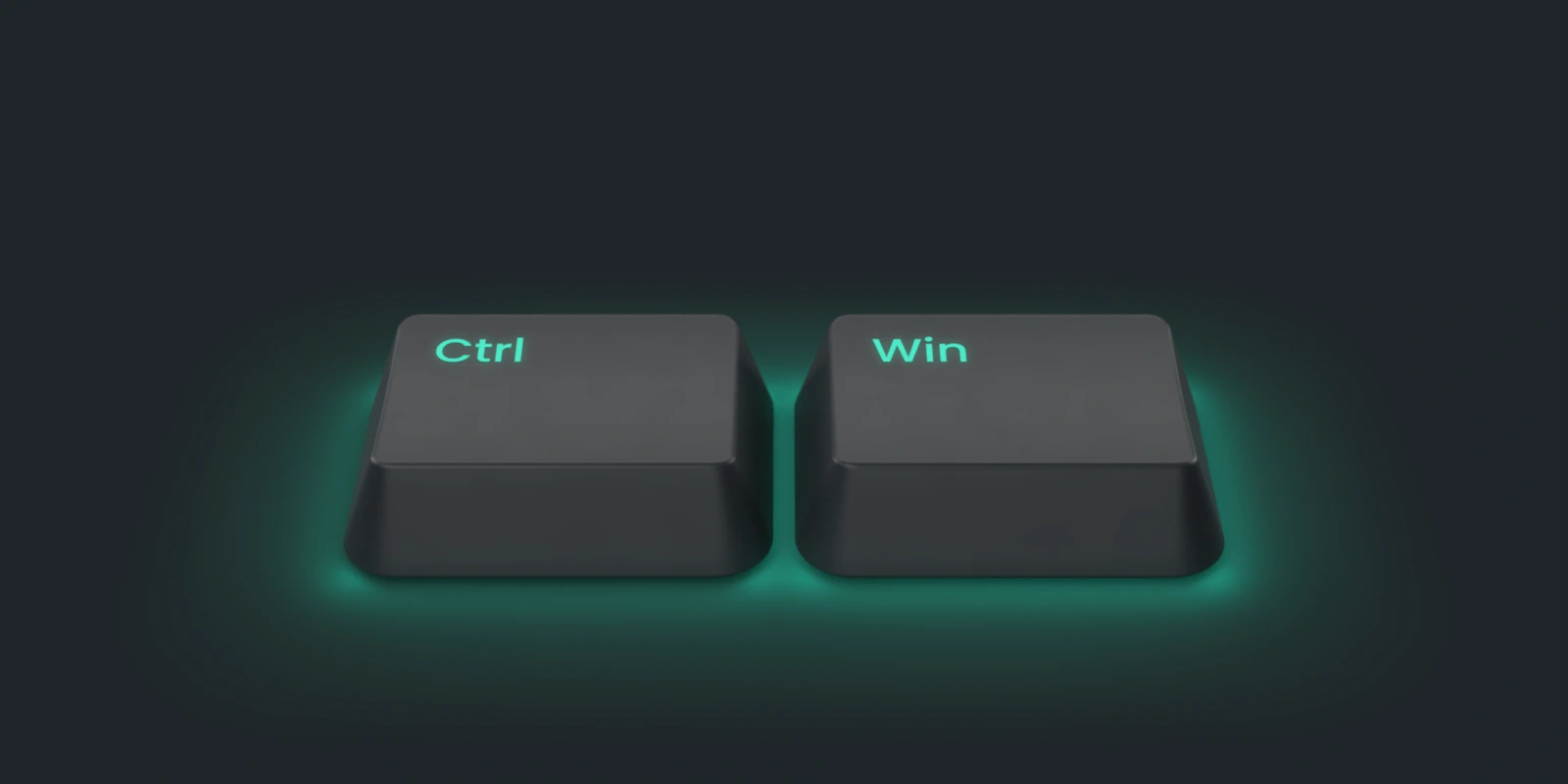
Hold Ctrl+Win and press M, or use the tray item, or the record button on the Meetings tab.
Deixis records the microphone and — when it can — the system output, so both halves of a call are
transcribed. Press again to stop.
A session lands in %USERPROFILE%\.deixis\sessions\<timestamp>\:
| File | What it is |
|---|---|
meta.json |
devices, sample rates, model, segment length, start and end |
audio\mic-0001.wav, … |
your microphone, 16 kHz mono, one file per minute |
audio\sys-0001.wav, … |
the system output ("Them"), when loopback is available |
transcript.mic.jsonl, transcript.sys.jsonl |
timestamped lines as they were transcribed |
transcript.md |
the merged, readable transcript — [00:12:34] Me: … |
notes.md |
AI summary, decisions, action items, open questions |
Notes need a cleanup endpoint whose Worker serves /summarize (see Settings, and where cleanup runs); without one
the meeting still records and transcript.md is still written — notes are deliberately the last,
failure-tolerant step, and the Regenerate notes button retries them.
Each session is named from what was said in it, so a month of meetings is a list of subjects
rather than thirty timestamps. Deixis asks a model for a short phrase, from the opening of the
transcript only — a local model if you have configured one, otherwise the same /summarize endpoint
the notes use. With neither, it falls back to the first substantial sentence somebody said. A name
you type yourself is never overwritten, by any of them, ever. Naming is the most failure-tolerant
step there is: when nothing can name a session it simply shows its date, which is what every meeting
showed before the feature existed.
While a meeting runs, it says so — the tray icon carries a red dot, its menu counts the elapsed time, and the Meetings item in the app's side rail shows a recording dot and the clock from whichever page you are on. The floating bar shows it too, unless you have set it to Hidden.
Worth knowing:
- Wear headphones if you can. Loopback captures what the speakers play, but your microphone hears it too, so on speakers "Them" bleeds into your own transcript. Echo cancellation is out of scope.
- Loopback can be unavailable (exclusive-mode devices, some virtual cards). Deixis falls back to
microphone-only, says so, and records it in
meta.jsonrather than failing the meeting. - Speakers are channels, not people. This version labels "Me" and "Them"; it does not yet split multiple remote voices apart.
- Dictation always wins. Transcription of a meeting yields to any dictation you start, so push-to-talk stays fast while an hour-long recording runs.
- A crash costs at most a minute. WAVs are finalised per segment; rebuild the transcript with
deixis-core --transcribe <session-dir>.
Keep reading
From the blog
How to transcribe a meeting without a bot joining the call
Record both sides of a call on your PC and transcribe it there, with no bot in the participant list and no audio uploaded. How it works, and its limits.
How to type by voice in any Android app, with the speech recognised on the phone
Dictate into any Android app's text field from a floating microphone. Speech recognition runs on the phone, and meetings are transcribed there too.
Hold a key. Speak. Keep working.
Deixis is free, needs no account, and runs on your own device.
v1.2.2 · 64‑bit Windows 10/11 · macOS 13 on Apple silicon · 51 MB · nothing else to install · also for Windows