Dictation for Microsoft Teams
A day in Microsoft Teams is a day of writing. The quick yes, the channel post nobody reads until Friday, the long thread reply explaining why the thing broke, the message you fire into the meeting chat while somebody else is talking. It is all prose, it is all short, and it is all faster said than typed — especially the long explanation, which is the one you keep putting off because typing it properly takes ten minutes.
Deixis is voice input for exactly that, and it is not a Microsoft Teams app, a bot or an extension for
anything. Hold Ctrl+Win, say the sentence, let go, and clean punctuated text lands at the caret in
whatever has focus — so the one key dictates your Microsoft Teams message, your email, your ticket, your
commit message and your browser's address bar. One voice input for the whole machine, not one per
app. It runs on Windows, Mac, iPhone and Android, speech recognition happens on the device every
time, and your audio never leaves it under any setting or any plan.
The second half is the calls. Press one key and Deixis records your microphone and the other side of the call, transcribes it on your own processor while the call is still running, and leaves you a transcript as a file in a folder you own. Nothing joins the meeting, and nobody sees a new participant appear.
Why Deixis
What it gives you in Microsoft Teams, and what it will not do
Why Deixis in Microsoft Teams
- A message comes out punctuated as a message. A one-line reply stays one line; a thread answer gets sentences. Deixis knows which it is typing into because the name of the app and the name of the control ride along with your words — never the window title, and never anything on your screen. Say it in one breath and it arrives readable.
- Meeting mode, with no bot in the call.
Ctrl+Win+Mrecords your microphone and, where the system can give it, the audio coming out of your speakers, so both halves of the call are transcribed — on this machine, as the call runs, with no key, no account and no network. It tells the remote voices apart and remembers the ones you name, and the voiceprint that does it stays on the machine, is never uploaded, and can be deleted per person. What you get at the end is a folder: the audio, the timestamped lines and a readabletranscript.mdyou can grep, back up or delete. Meeting notes — the summary, the decisions, the action items — are the one optional step that leaves the machine, and only if you have set an endpoint up; with none set, the meeting still records and the transcript is still written. - Free mode, for the message you have not finished thinking through. Double-tap the chord and Deixis keeps listening while you drag a region of the screen, take a selection or pick an element. What you said and what you pointed at come out as one note, pasted where your caret is — which is most of a good bug report, dictated in the time it takes to describe it.
- Screen grabs on the same palette.
Ctrl+Win+Sfreezes the screen and lets you drag a region: quick-save it, or annotate it with arrows, boxes, a highlighter, numbered step badges and a pixelate tool for the customer name in the corner. Every save keeps a sidecar so the grab stays re-editable rather than flattened forever. - A screen recording with a link, for the thing you would rather show.
Ctrl+Win+Vrecords the screen with your narration, writes it up with a title and a summary, and hands you a link anyone can watch without an account of their own. Sharing is the one managed feature, so making that link needs a Deixis account; it expires on its own and you can revoke it whenever you like. - Your own buttons, and your own workflows. Put a button on the palette that runs your program with the finished note and types back whatever it prints, straight at the caret — file the ticket and get its key back where you were typing. Or chain steps together as plain settings: read the text off a screenshot, translate it, summarise it, post it. And any finished note, grab or translation can go to a URL you own, signed with an HMAC and a timestamp so your receiver can prove it came from you and refuse a replay.
- It learns your words. Select a term anywhere — a service name in a channel post, a symbol in a
diff — press
Ctrl+Win+D, and it is in your vocabulary. Five packs ship in the box, the software one on by default. - Everything is a file you own. Notes, meeting transcripts, recordings, screenshots, your dictionary and every setting sit in one folder as ordinary files, with your dictation history in its own tab and an export beside it. Back it up, search it, uninstall tomorrow and it is all still there.
- Free, with no account, forever. Dictation, both speech models, the dictionary, meeting recording and transcription, grabs, recordings, buttons and webhooks: all free, none of it behind a sign-in. Deixis never asks you to make an account to dictate.
What it will not do
- It does not join or control the call. Deixis records what your machine can hear; it cannot turn Microsoft Teams's own recording or transcription on, cannot read the participant list, and does not appear as an attendee. If you need the recording in the organizer's OneDrive with everyone notified, that is Microsoft's feature and you should use it.
- It does not know your organisation's recording policy, and that is on you. Recording a call may be governed by your employer's rules and by the law where you and the other people are, and deciding whether you may — and telling the room — is your responsibility, not the software's. Microsoft's own docs describe an explicit consent setting for their recording precisely because this is not a small question. Do not use Deixis to record people who have not been told.
- It types in English only. The speech models are English models. Microsoft lists over forty languages for Microsoft Teams's own transcription, so if your calls are not in English, theirs is the better tool for that and this is not yours yet.
- It will not read a recording you hand it. Deixis transcribes what it records: your dictation, your meetings, your screen recordings. Drop-a-file transcription is not in it, so it cannot pick up a Teams recording that already exists.
- It does not read your screen. Deixis is dictation, not an agent. It sends the name of the app and the field, never their contents, so it cannot see the message you are replying to. You still have to say what you mean.
- No Linux build, and no PC older than 2013. The speech engine is compiled against an instruction set that arrived in 2013, so an older processor stops rather than running slowly. Linux is not planned — which at least puts it in company, since Microsoft's own client page says Teams is no longer supported there either.
- Wear headphones for a meeting. Your microphone hears your speakers too, so on open speakers the other side bleeds into your own half of the transcript. Echo cancellation is out of scope.
What you get
More than dictation. One key, and everything behind it.
Hold the key and press a letter: free mode, a grab, a meeting, a recording, a translation, your own buttons. All of it on your own device, all of it free, none of it behind an account.
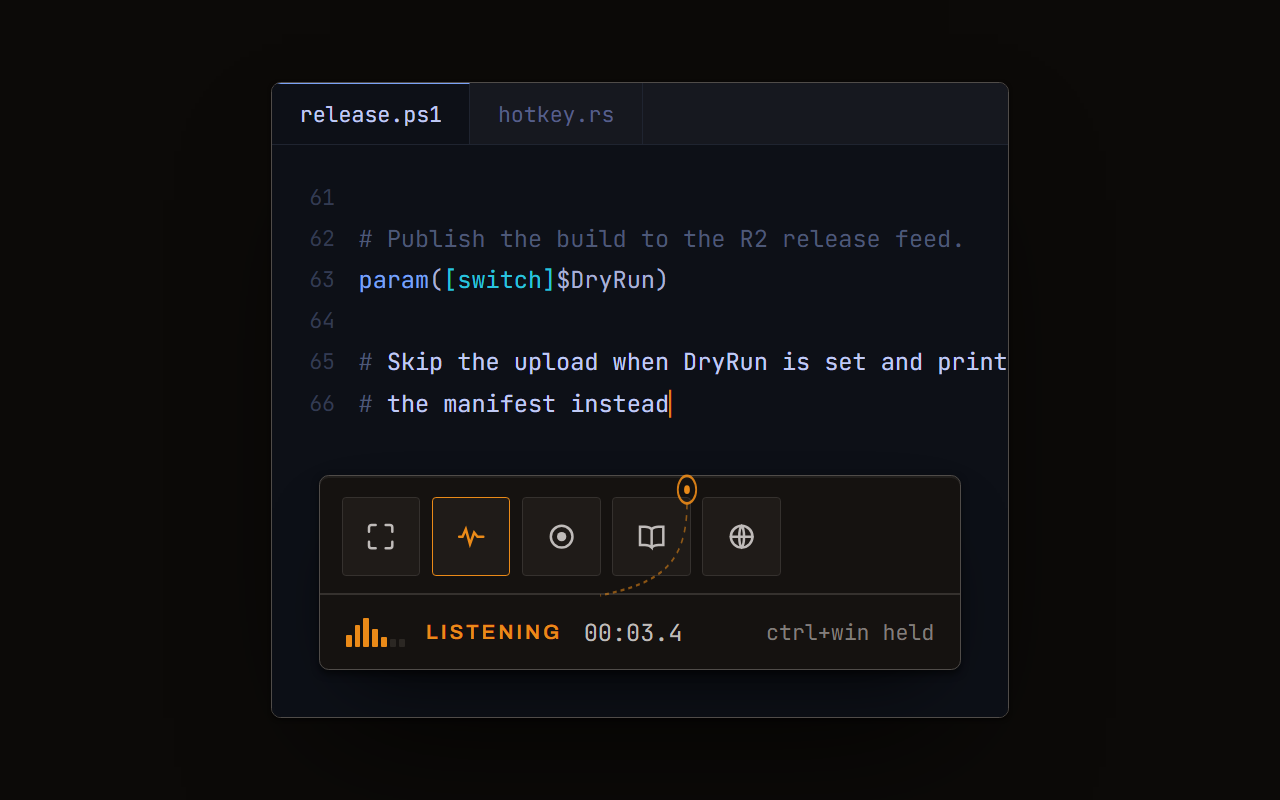
Dictation, where your cursor is
Hold a key, speak, release. Clean, punctuated text lands in whatever has focus, on your PC, your Mac and your phone, with your clipboard handed back.
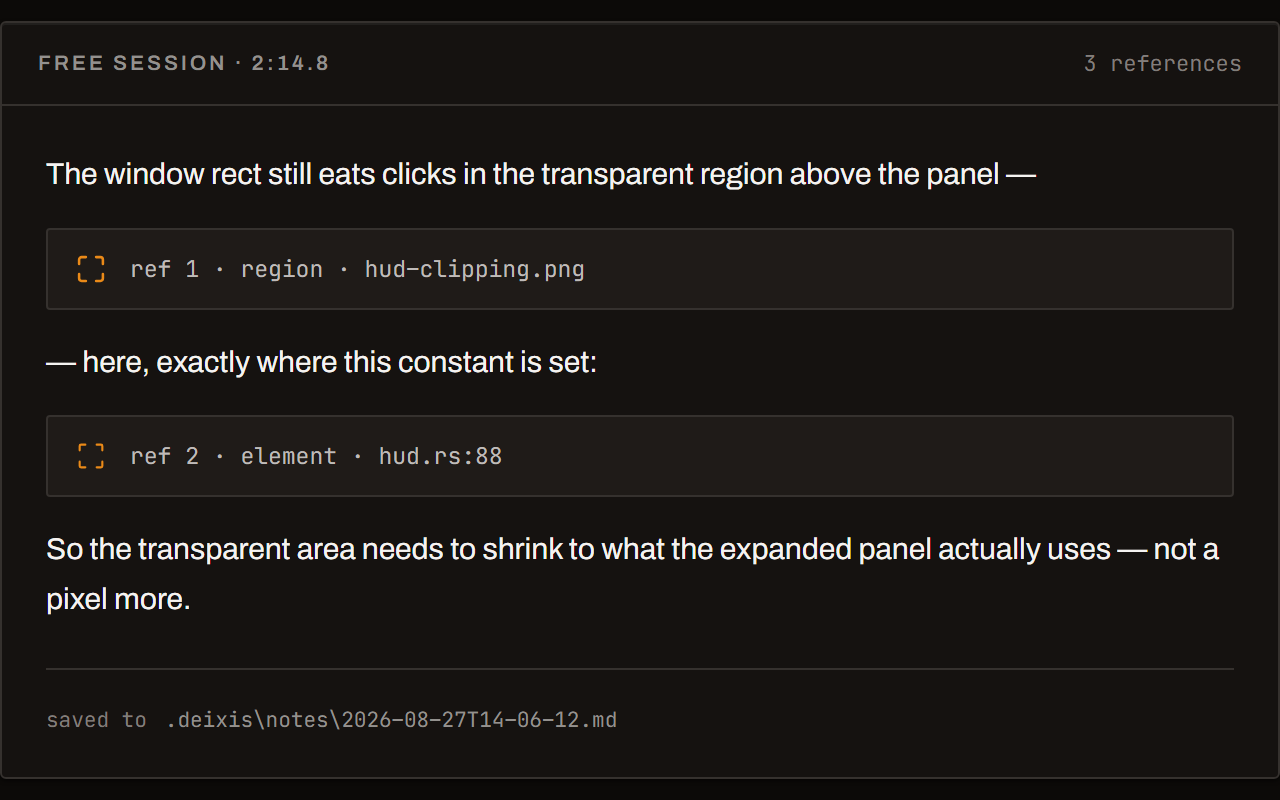
Free mode: talk and point
Narrate for as long as you like while you grab a region, pick a button on screen or take a selection. One note, what you said interleaved with what you pointed at, pasted where you finish and saved as Markdown.
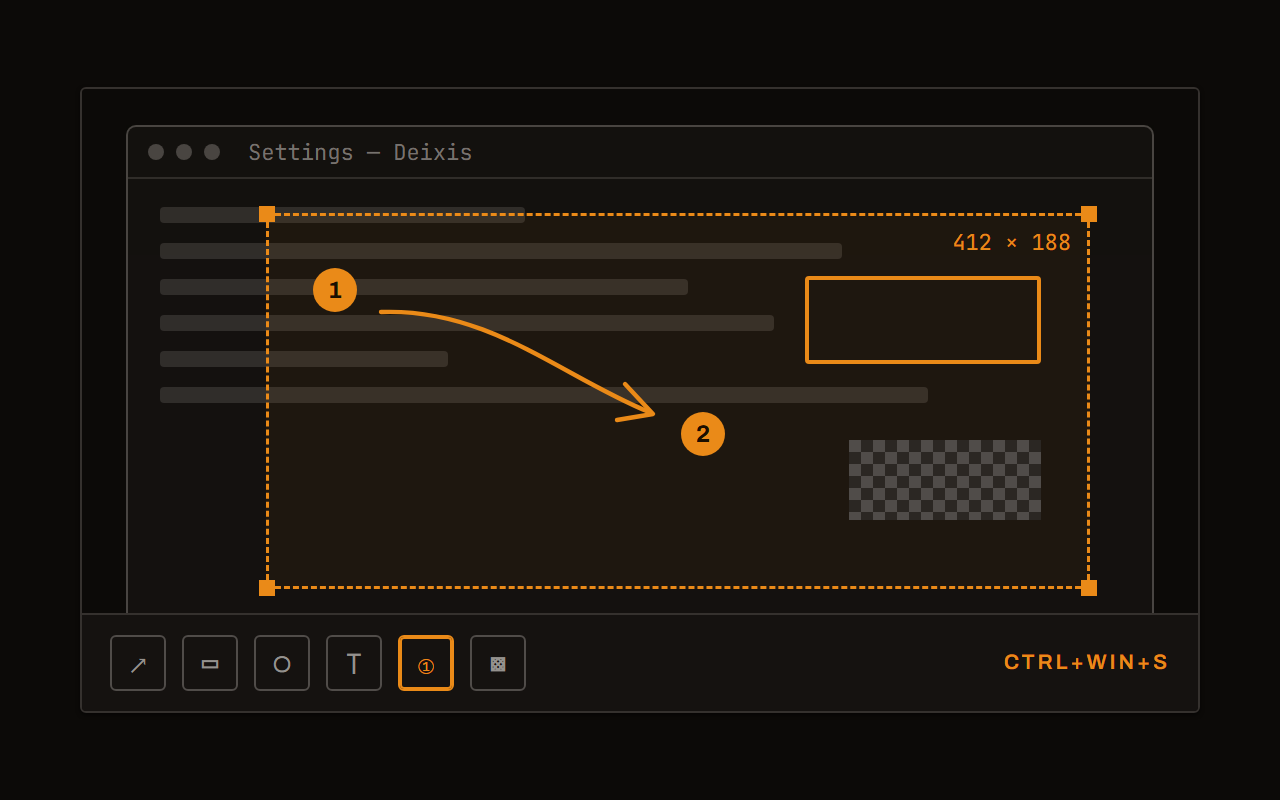
Screen grabs, annotated
Freeze every screen at the keypress, drag a region, add arrows, boxes, text and numbered steps, and pixelate what is private. Saved as a PNG that stays editable.
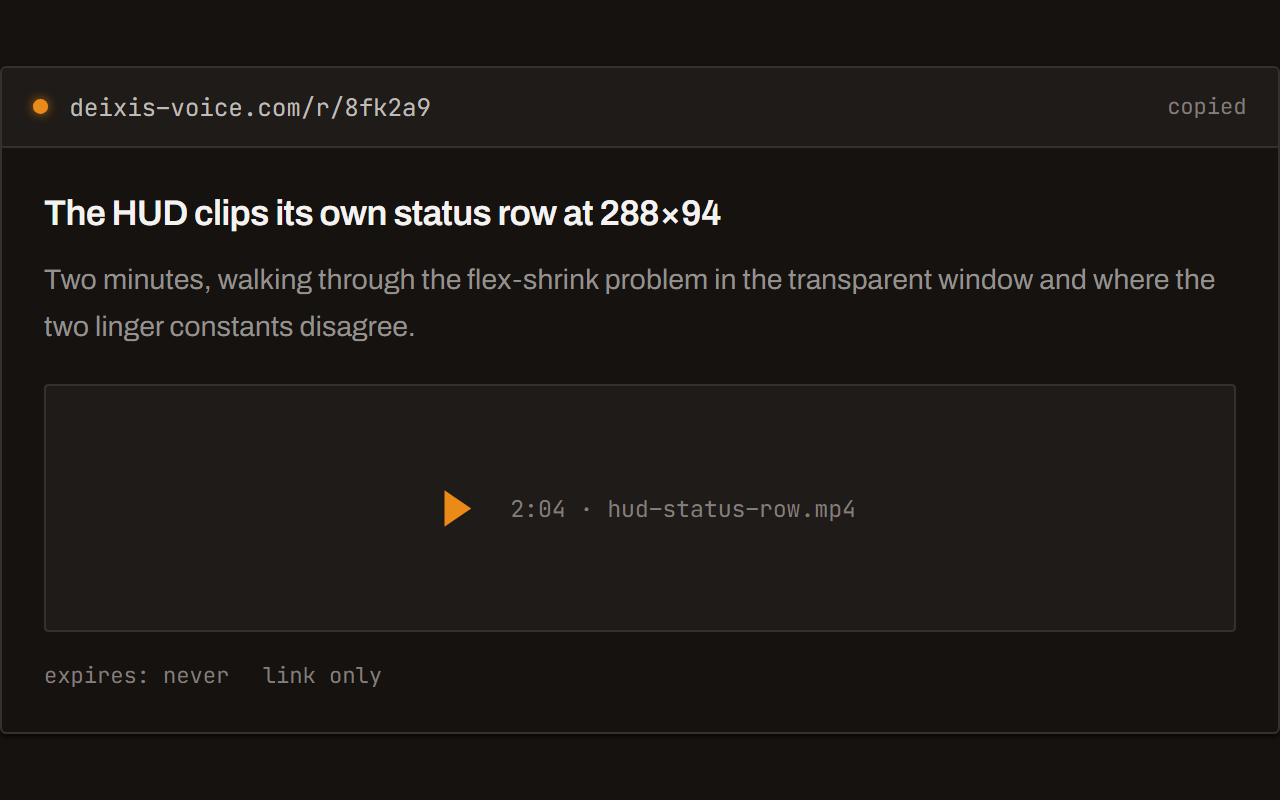
Screen recording, shared as a link
Record the screen with your narration. The recording writes itself up with a title, chapters and a summary, and from your Deixis account it shares as a link anyone can open without one. The Loom you can stop paying for.
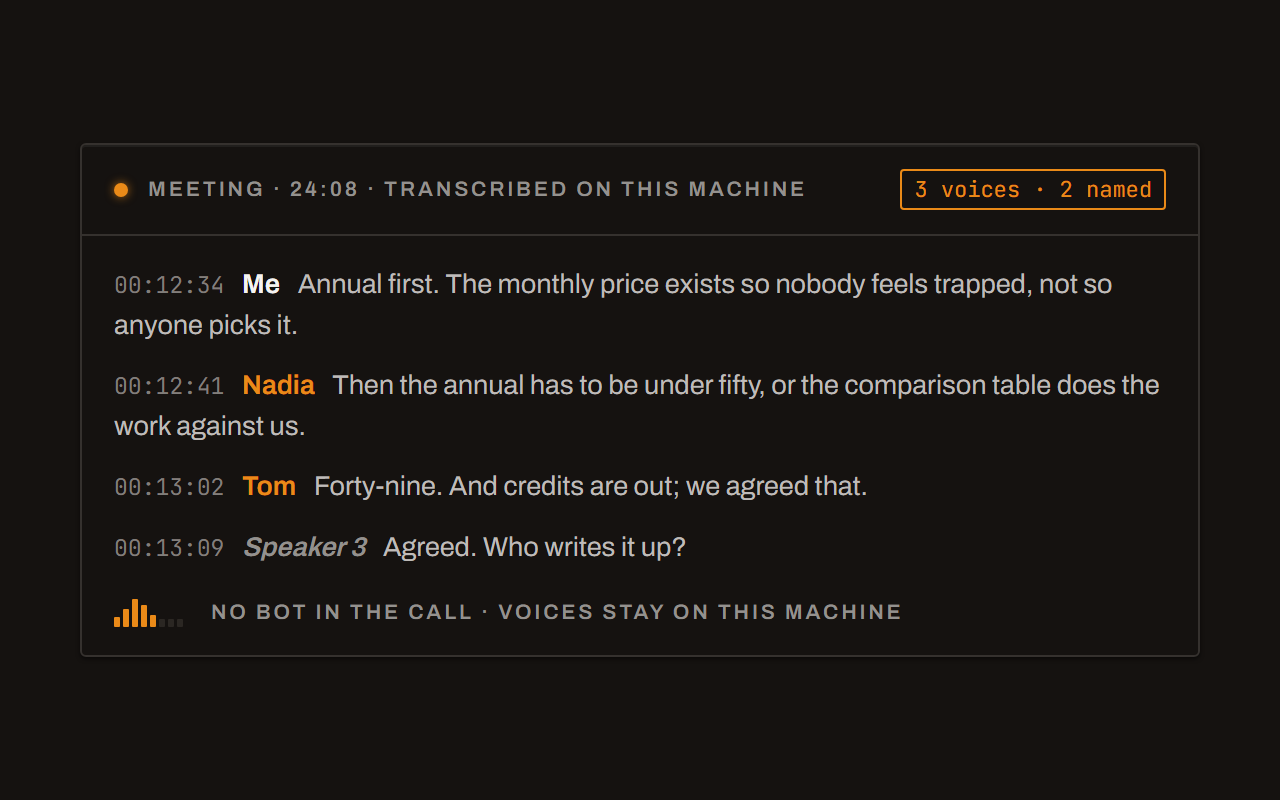
Meetings, no bot, names included
Your microphone and the other side, transcribed on your machine while the call runs. Deixis tells the voices apart and remembers the ones you name, and never uploads a voice.
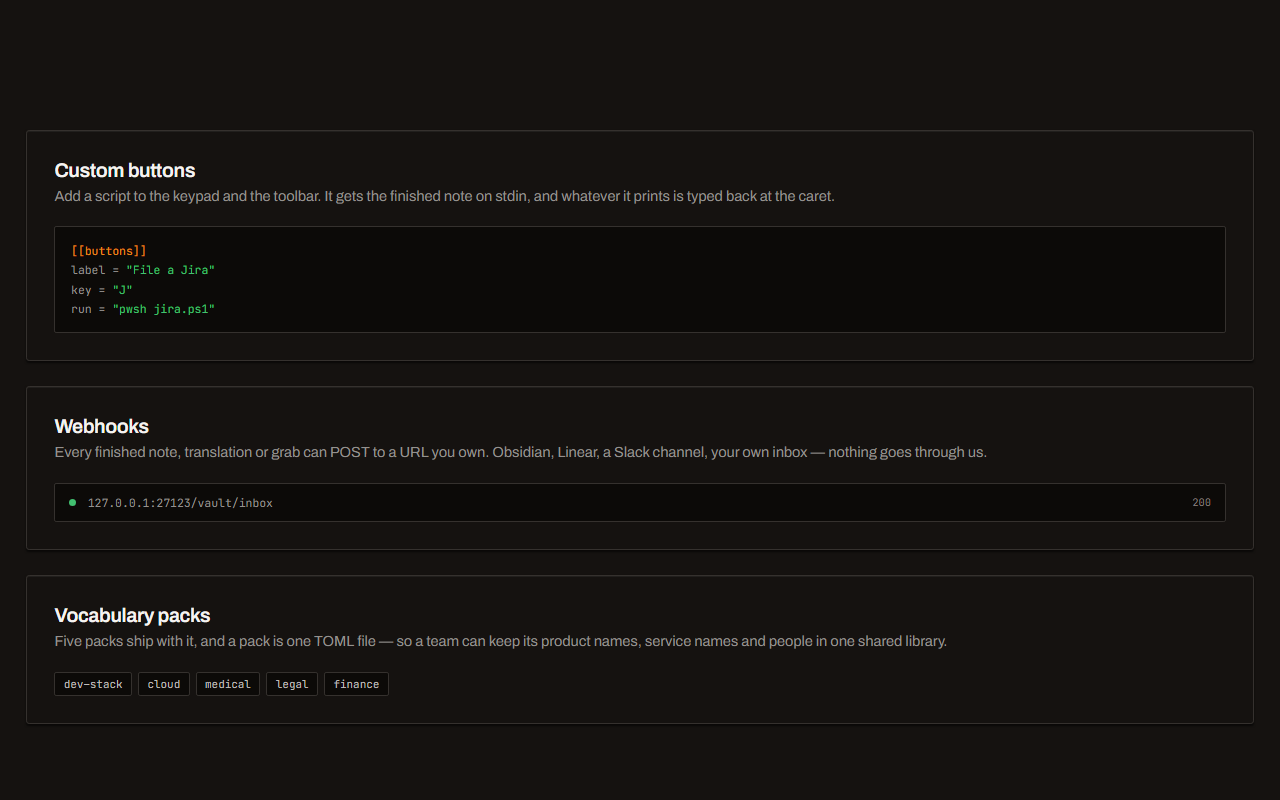
Your own buttons and workflows
Add a button to the palette: it gets the note on stdin and types back whatever it prints. Send finished notes to any URL you own. Chain steps: read the text off a screenshot, translate it, summarise it, post it.
Field by field
The same voice, punctuated for wherever you are in Microsoft Teams
Deixis knows which app and which field your words are going into — the name of the app and the name of the control, never the window title and never what is on your screen. A prompt, a message and a commit line therefore come out differently. Here is the chat box, the channel and the call, kind by kind.
| Where you are | What you say | What Deixis types |
|---|---|---|
| A quick chat replythe compose box in a one-to-one chat | “yeah that works for me um can you push it to the staging branch first” | Yeah, that works for me. Can you push it to the staging branch first?A short reply stays a short reply. The filler goes, the question gets its mark, and nothing is expanded into prose you did not say. |
| A channel postthe message box in a channel, with the subject line above it | “the release is out the poller fix is in it and the deploy notes are on the wiki tab” | The release is out. The poller fix is in it, and the deploy notes are on the wiki tab.A post that everyone will read gets sentences rather than one long run-on, because Deixis knows it is typing into a body and not a one-line box. |
| A long explanation in a threadthe reply box under a message in a channel thread | “so the reason it times out is the cleanup call sits on the hot path we move it off and the insert stops waiting on the network um and then we add a timeout for the cold start case” | The reason it times out is that the cleanup call sits on the hot path. Move it off and the insert stops waiting on the network. Then we add a timeout for the cold-start case.The long answer is the one worth speaking. Three sentences out of one breath, punctuated, with the filler dropped. |
| A message in the meeting chatthe chat panel beside a call in progress | “link to the shad kin docs coming right after this call” | Link to the shadcn docs coming right after this call.Your dictionary fixes shadcn on your own machine, before anything is sent anywhere — and typing it mid-call beats hunting for the spelling. |
| A task or a wiki entry in a taba task description or a page in a tab pinned to your channel | “check the loopback fallback on the meeting room laptop it recorded mic only last thursday” | Check the loopback fallback on the meeting room laptop: it recorded mic-only last Thursday.A task line reads as a line, with the detail after a colon rather than as a second sentence. |
Microsoft Teams facts from clients, recording, policies, overview, transcription, messages and voicetyping, read on 7 September 2026. Everything about Deixis on this page is from its README for the current release.
Worth knowing about Microsoft Teams
- Microsoft's own client page lists Teams on Windows, macOS, the web (Edge, Chrome, Firefox and Safari) and iOS and Android — and says plainly that Teams is no longer supported on Linux.
- Recording a Teams meeting is not simply a button. Microsoft's support page says the organizer and the person recording each need one of a list of Microsoft 365 or Office 365 licences, need recording enabled by an IT admin, and must not be a guest or from another organisation.
- It is also an administrator's decision. The admin docs describe a meeting policy toggle (and a PowerShell parameter) that allows or prevents recording for a user, a group or the whole organisation, with separate policies again for events and for one-to-one calls.
- Teams recordings and transcripts are not files on your disk: Microsoft's docs say a recording is uploaded to the organizer's OneDrive for private meetings or the channel's SharePoint site for channel meetings, indexed by Microsoft 365 search, and findable through eDiscovery. An org-wide policy can also stop people downloading a channel meeting's recording and transcript.
- Live transcription notifies the room — Microsoft's page says all participants see a notification that the meeting is being transcribed — and the transcript lands in the organizer's OneDrive, reachable from the meeting chat and the Recap tab until the organizer deletes it. Organizers and co-organizers can download it as a .docx or .vtt.
- Teams' own transcription covers far more ground than Deixis on language: Microsoft lists over forty spoken languages, though live translated transcription needs a Teams Premium licence, and the same page notes live transcription is only available on Teams for desktop.
- Microsoft also documents an explicit recording consent policy, which requires participants to consent before they can be included in a recording or transcript, a setting that replaces the default recording privacy statement with your own organisation's legal URL, and a policy for when recordings and transcripts expire.
- Microsoft's own Teams chat pages do not document dictation in the message compose box — the send-and-read-messages page covers sending, editing and deleting messages, reactions and translation, and nothing about voice, so dictating a Teams message is not documented as a Teams feature.
- Windows has voice typing of its own, on Windows logo key + H, and Microsoft's page is plain about what it costs: it is "powered by Azure Speech services", and "To use voice typing, you'll need to be connected to the internet, have a working microphone, and have your cursor in a text box." Deixis needs neither the connection nor an account.
Five minutes
Setting it up
About five minutes, and nothing is installed into Microsoft Teams at all — no app to add, no admin to ask.
Install and fetch the model
One installer, nothing else to install, no admin prompt. The first launch shows a single Download button for the speech model — about the size of a short video, fetched once, and checked against its published size and hash before it is kept. From then on you are offline unless you choose otherwise.
The gesture
Hold Ctrl+Win, speak, release. Your clipboard is handed back the way you left it. Double-tap it
instead for free mode, which keeps listening until you double-tap again — the one for a long thread
reply you are still working out. Hold the chord a moment longer and a small palette appears with a
letter per mode: S grabs a region, V records the screen, M records a meeting, T translates
your selection, D puts the word under your cursor into your dictionary. If the chord fights
something in your setup, Settings captures a new one as you press it.
Recording a call
Press Ctrl+Win+M — or use the tray item, or the record button on the Meetings tab — and Deixis
starts capturing. Press it again to stop. It takes your microphone and, when the system allows it,
the loopback of what your speakers are playing; where loopback is not available it falls back to
microphone-only, says so, and records that fact rather than failing the meeting. Transcription runs
in the background and always yields to dictation, so pressing the chord mid-call stays fast. A
crash costs at most a minute, because the audio is finalised segment by segment.
Before you press it, decide whether you may. See the limits above: your organisation's rules and your local law come first, and telling the other people is the decent thing as well as often the required one.
Teach it your words
The biggest accuracy win and the only one that costs no speed. Your product names, your services,
your colleagues' spellings: select one anywhere and press Ctrl+Win+D. Names it keeps mishearing
can be corrected once and stay corrected. The Dictionary tab is the same list if you would
rather edit it in one place.
Decide what may leave, once
Settings → Cleanup is the only privacy decision here, and its default is the quiet one: rules tidy your words on this machine unless you asked for a transform or dictated a long stretch with no punctuation. Set it to never, or leave the endpoint empty, and dictation never touches the network at all. Point it at a model running on your own machine and the better prose stays local too. The same setting is what meeting notes use, so with nothing configured your meetings are wholly local and you get the transcript without the summary. Whatever you choose, audio is not part of it — that never leaves, and there is no setting that makes it.
Before you ask
Questions people search for
Does Microsoft Teams have dictation for chat messages?
Not that Microsoft documents. Their own page on sending and reading Teams messages covers formatting and reactions and says nothing about voice, so dictating a Teams message is not documented as a Teams feature. Windows has voice typing on Windows logo key + H, but Microsoft's page for it says it is powered by Azure Speech services and that you need to be connected to the internet to use it. Deixis needs neither a connection nor an account.
Does a bot join my call?
No. Deixis records the audio your own machine can hear — your microphone and the loopback of your speakers — from outside Microsoft Teams entirely. Nothing is added to the participant list and nothing is installed into Teams, which also means it cannot notify the room for you. Telling people you are recording is your job.
Should I use this instead of Teams' own recording and transcription?
Often you should use both, for different reasons. Microsoft's recording puts the file in the organizer's OneDrive or the channel's SharePoint site, notifies everyone, and is discoverable by your organisation — which is exactly right for a meeting of record. It also needs a qualifying licence and an admin to have enabled it, and an admin policy decides when it expires. Deixis is your own notes of your own call, in a folder on your disk, with no licence and no admin involved.
Is it legal to record a call?
That depends on where you are and who is on the call, and it is your decision, not ours. Consent rules differ by country and by state, employers often have their own policy on top, and Microsoft documents an explicit consent setting for their own recording for the same reason. Deixis will not work it out for you: say that you are recording, and do not record people who have not been told.
Do I need an account or a subscription?
No. Dictation, both speech models, the dictionary, meeting recording and on-device transcription, grabs, screen recording, buttons and webhooks are free with no sign-in at all. The optional cloud bits — polishing prose, translating a selection, writing up meeting notes — are free too with your own provider key, or with a model running on your own machine. Paying only buys not having to set that up. Sharing a recording as a link is the one thing that needs a Deixis account.
Will it work offline?
Completely. With no cleanup endpoint set, dictation, free mode, screen grabs and meeting recording and transcription all run with no network at all. Two calls a fresh install makes on its own: the update check, and — when you open the Settings window — a check for an announcement from us. Both send nothing but the request.
Keep reading
Related pages
Voice input for your product, without the audio leaving your user
Put voice input in your web or desktop app in about ten lines. Recognition runs on your user's machine, so no audio reaches you, us, or any cloud.
Offline dictation on Windows
Dictation that works with no internet: speech recognition on your own device, free, no account. Which Windows speech-to-text tools genuinely run offline.
Dictation for Outlook
Deixis dictates into Outlook on one key — subject lines punctuated as subject lines, bodies as prose. Speech recognition on your device, no account.
Dictation for Claude Code
Deixis dictates into Claude Code on one key — terminal, editor, desktop app or browser. Speech recognition on your own device, no account, free.
Dictation for Cursor
Deixis dictates into Cursor on one key — the agent prompt, the editor, the terminal, anywhere else. Recognition on your own device, no account, free.
Dictation for VS Code
Deixis dictates into VS Code on one key — chat, editor, terminal, and every other window on your machine. Speech recognition on your device, no account.
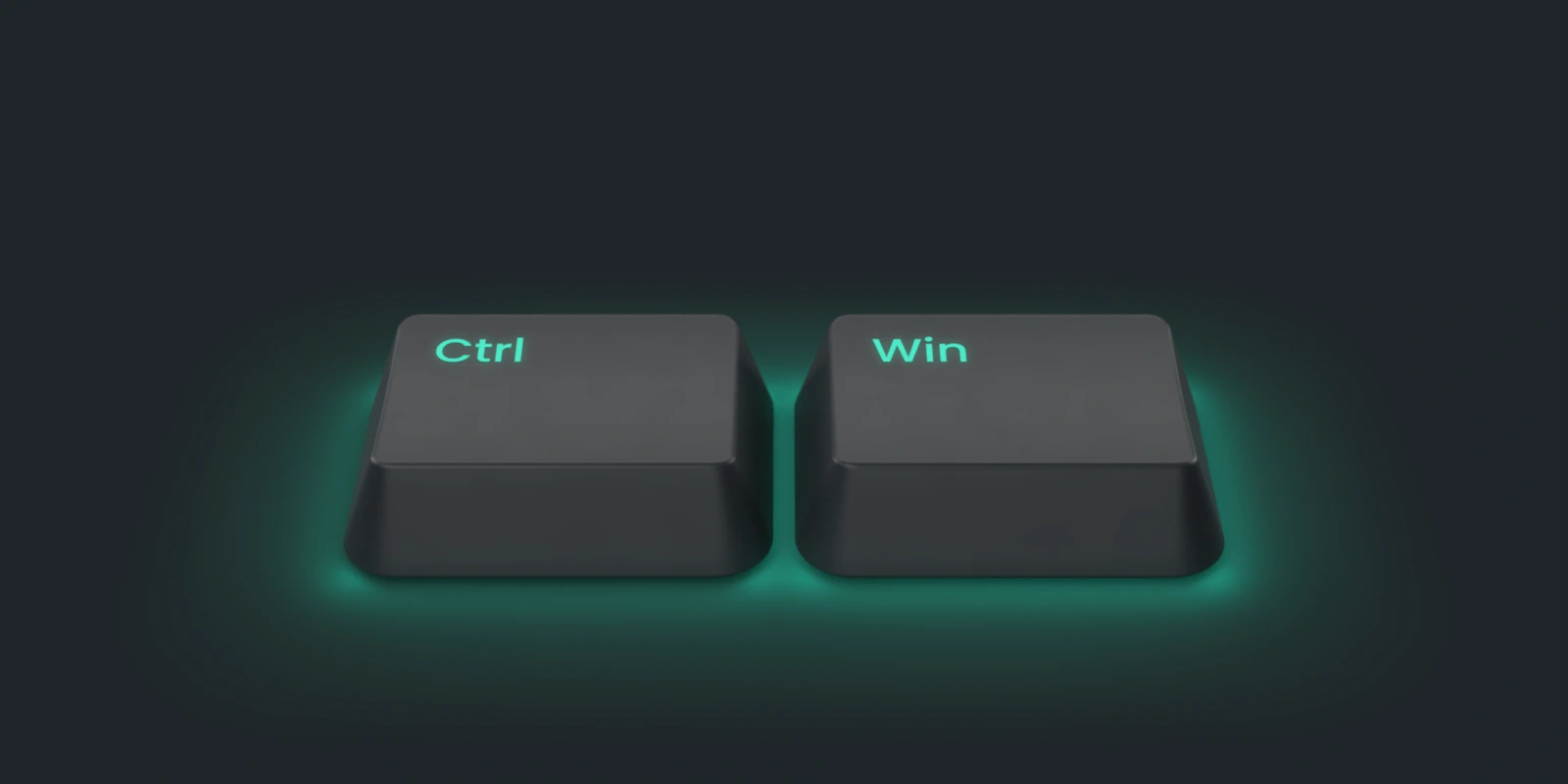
Hold a key. Speak. Keep working.
Deixis is free, needs no account, and runs on your own device. Everything on this page is in the current release.
v1.2.2 · 64‑bit Windows 10/11 · macOS 13 on Apple silicon · 51 MB · nothing else to install · also for Windows
Facts about Microsoft Teams checked on 2026-09-07 against microsoft.com. Deixis facts are from its README for the current release. Something out of date? Tell us.