Dictation for Cursor
Working in an agent-first editor is mostly writing. You describe the change you want, you say why the approach you were offered is wrong, you write the rule that stops it happening again, and then you write the commit line and the pull request that explain it to somebody else. It is the part of the day with the most words in it and the least code, and it is the part that is quickest to say out loud.
Deixis is voice input for exactly that. Hold Ctrl+Win, say the paragraph, let go, and clean
punctuated text is typed straight into whatever you were looking at, with your clipboard handed
back the way you left it. There is no window to switch to, no transcript to copy, and no account
to make.
That last part is the point. Deixis is not a Cursor feature and not an extension for anything: it types wherever your cursor already is, so the key that dictates your prompt is the same key that dictates your email, your ticket, your chat reply and the address bar in your browser. One voice input for the whole machine, not one per app — and it runs on Windows, Mac, iPhone and Android, with speech recognition on the device every time. Your audio never leaves it, under any setting, on any plan.
Why Deixis
What it gives you in Cursor, and what it will not do
Why Deixis in Cursor
- One key for every field on the machine, not one app's feature. Deixis types at the caret, so the same gesture works in Cursor's agent prompt, in a file you have open, in the terminal underneath it, and then in your email, your ticket tracker and your chat when you switch away. You learn one thing and it is everywhere, including on the Mac and on your phone, with the same on-device recognition on each.
- Your voice never leaves the machine, and there is nothing to sign in to. Recognition runs
inside Deixis, on your own processor, with no account and no telemetry. Cursor has voice input
of its own — press and hold
Ctrl+M, and its release notes describe a waveform, a timer, and a full clip transcribed with batch speech-to-text after you stop. Where that audio is transcribed, their own pages do not say either way. With Deixis you do not have to wonder: it never goes anywhere. - It punctuates for the field you are in. A prompt, a code comment, a commit line and a pull request body all read differently, and Deixis knows which one it is typing into, because the name of the app and the name of the control ride along with your words. Never the window title, and never anything on your screen.
- It knows your stack's words.
shadcnanduseEffectcome out spelled the way you write them, fixed on your own machine before anything is sent anywhere. Five vocabulary packs ship in the box, the software one is on by default, and adding a word takes one key press. - Point as well as talk. Double-tap the key and Deixis keeps listening while you drag a region of the screen, pick a button, or take a selection. What you said and what you pointed at come out as one note — which is most of a good bug report, dictated in the time it takes to describe it.
- Grab the screen, or record it and hand over a link.
Ctrl+Win+Sfreezes the screen so you can drag a region, then quick-saves it or opens an editor with arrows, boxes, a highlighter and a pixelate tool for the parts nobody else should read.Ctrl+Win+Vrecords instead, writes the recording up with a title and a summary. Handing it over as a link needs a Deixis account; the person watching needs nothing — for the change that is easier to show than to describe. - Meetings, transcribed on this machine.
Ctrl+Win+Mrecords your microphone and — where the machine allows it — the call's audio too, and transcribes both here, with no key and no network. The merged transcript is written as you go. It tells the remote voices apart and remembers the ones you name, and the voiceprint that does it stays on the machine, is never uploaded, and can be deleted per person. The audio and the transcript both stay on the machine. - Your own buttons, and your own webhooks. Put a button on the palette that runs your program with the finished note and types back whatever it prints, straight at the caret — file the ticket, get the key back. Or chain steps as plain settings: read the text off a screenshot, translate it, summarise it, post it. And any finished note, grab or translation can go to a URL you own, signed with HMAC and a timestamp so your receiver can prove it came from you and refuse a replay.
- Everything is a file you own. Notes, transcripts, recordings, screenshots, your dictionary and every setting sit in one folder as ordinary files, and your dictation history has its own tab with an export. Back it up, search it, uninstall tomorrow and it is all still there.
- Free, with no account, forever. Dictation, both speech models, the dictionary, meetings, screen grabs, screen recording, your own buttons and webhooks: all of it free, and none of it behind a sign-in.
What it will not do
- No Linux build, and no PC older than 2013. Cursor ships Linux packages and installs from one shell command; Deixis does not, and is not planning to. The speech engine is also compiled against an instruction set that arrived in 2013, so an older processor stops rather than running slowly.
- It types in English only. The speech models are English models. If you prompt your agent in another language, this is not your tool yet.
- It does not read your screen or your codebase. Deixis is dictation, not an agent. It sends the name of the app and the field, never the contents, so it cannot see the diff Cursor just put in front of you. You still have to say what you mean.
- It will not transcribe a file you hand it. Deixis transcribes what it records: your dictation, your meetings, your screen recordings. Drop-a-file transcription is not in it.
- It cannot start the agent by itself. Cursor's own voice input lets you set a submit keyword that sets the agent running when you say it. Deixis types the words and stops there — you press Enter.
- It is not a keyboard replacement. Symbols, paths and flags are still faster typed. Deixis is for the prose half of the work, which in agent work happens to be most of it.
What you get
More than dictation. One key, and everything behind it.
Hold the key and press a letter: free mode, a grab, a meeting, a recording, a translation, your own buttons. All of it on your own device, all of it free, none of it behind an account.
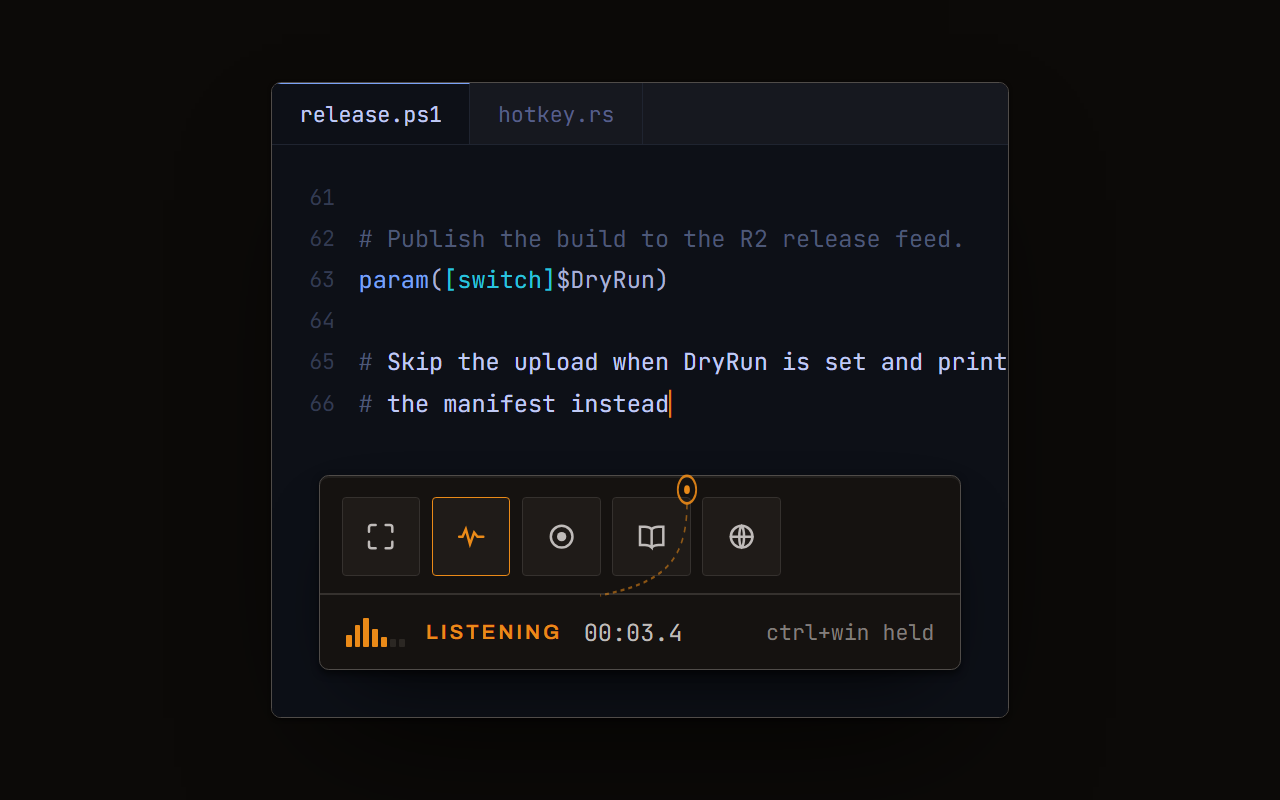
Dictation, where your cursor is
Hold a key, speak, release. Clean, punctuated text lands in whatever has focus, on your PC, your Mac and your phone, with your clipboard handed back.
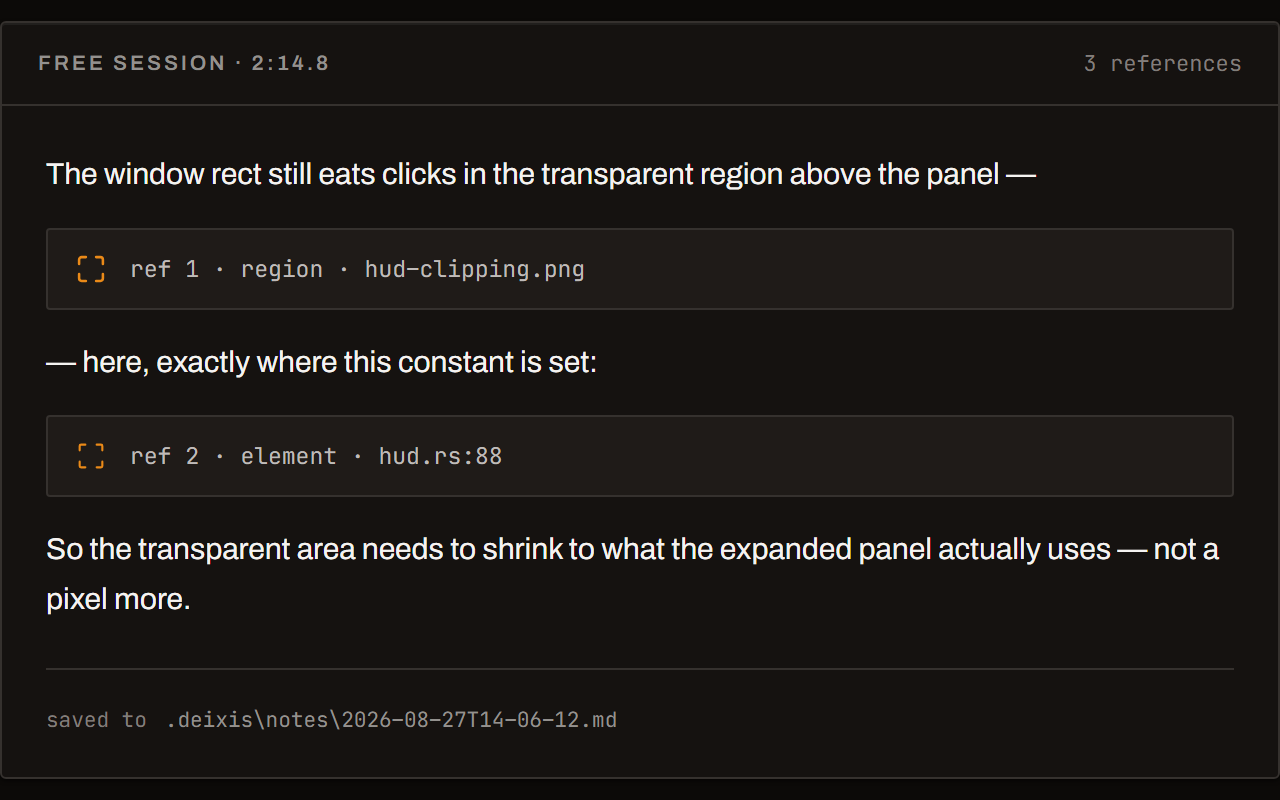
Free mode: talk and point
Narrate for as long as you like while you grab a region, pick a button on screen or take a selection. One note, what you said interleaved with what you pointed at, pasted where you finish and saved as Markdown.
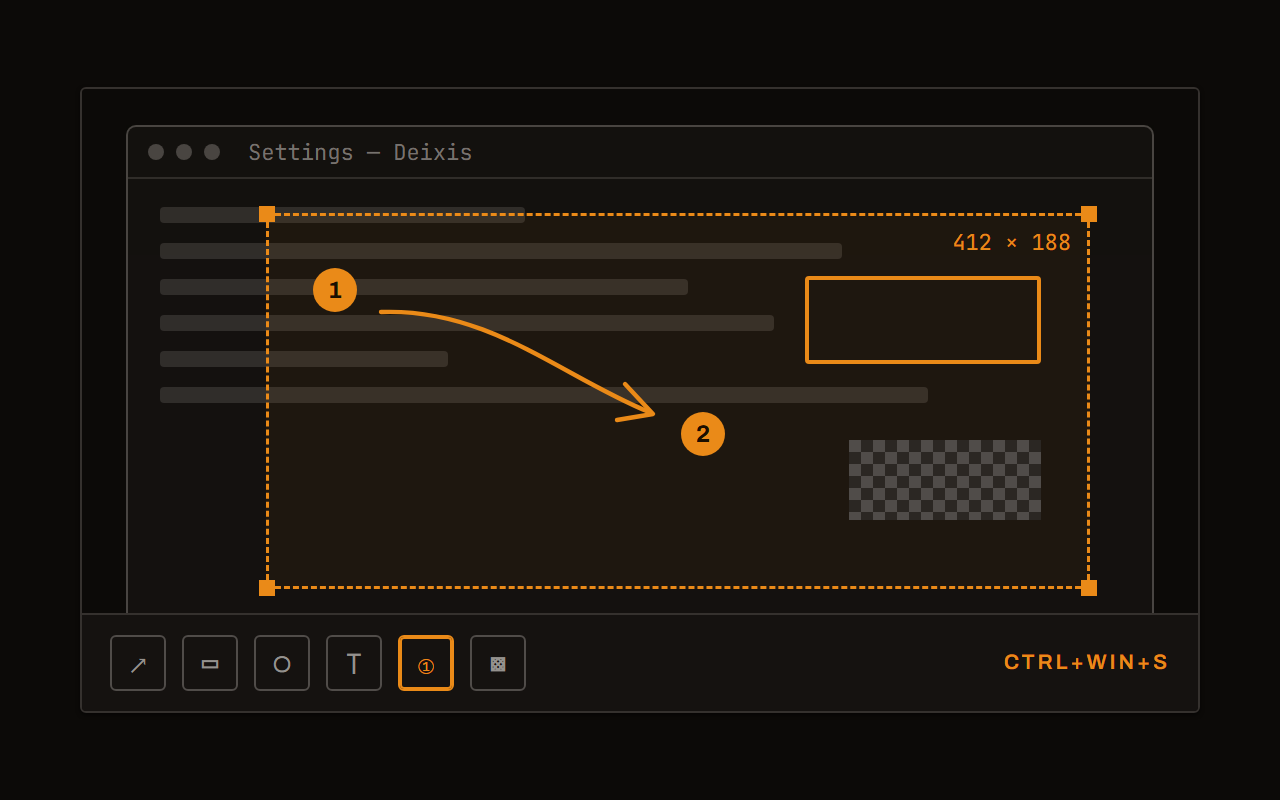
Screen grabs, annotated
Freeze every screen at the keypress, drag a region, add arrows, boxes, text and numbered steps, and pixelate what is private. Saved as a PNG that stays editable.
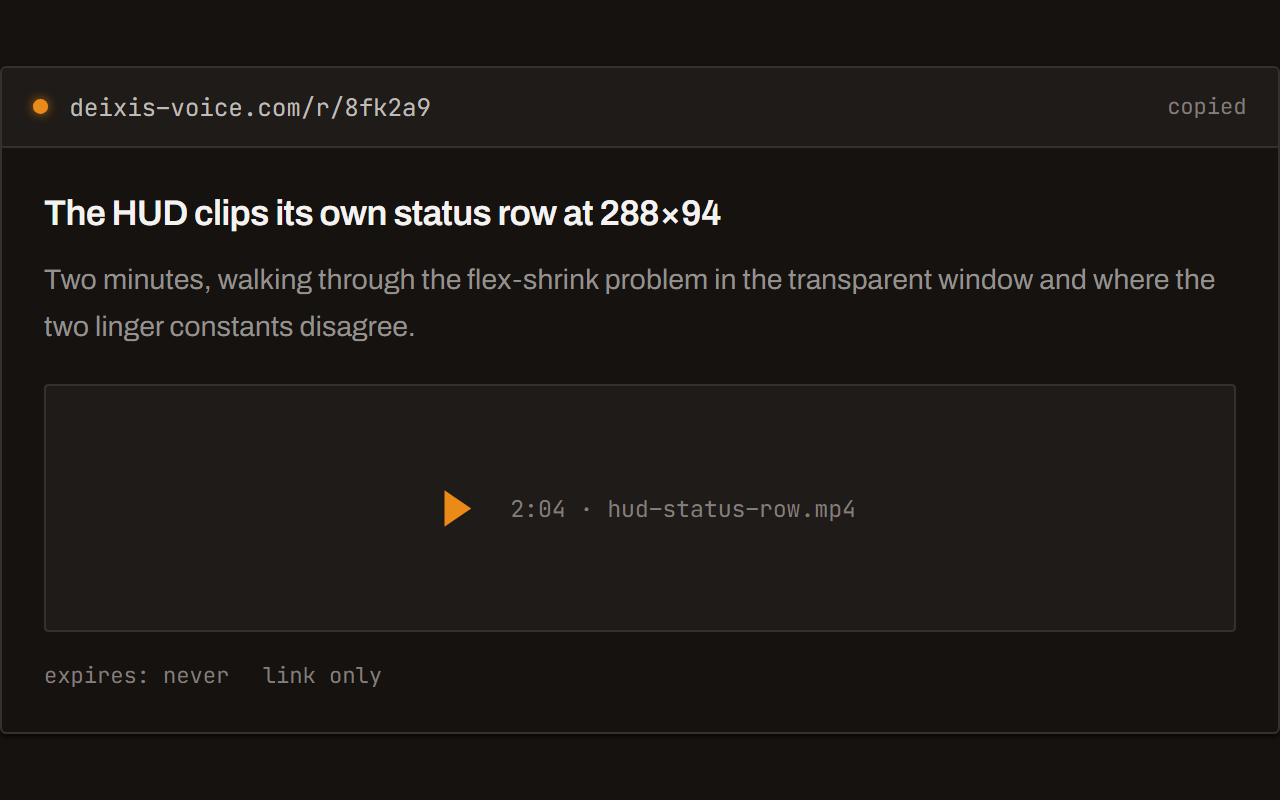
Screen recording, shared as a link
Record the screen with your narration. The recording writes itself up with a title, chapters and a summary, and from your Deixis account it shares as a link anyone can open without one. The Loom you can stop paying for.
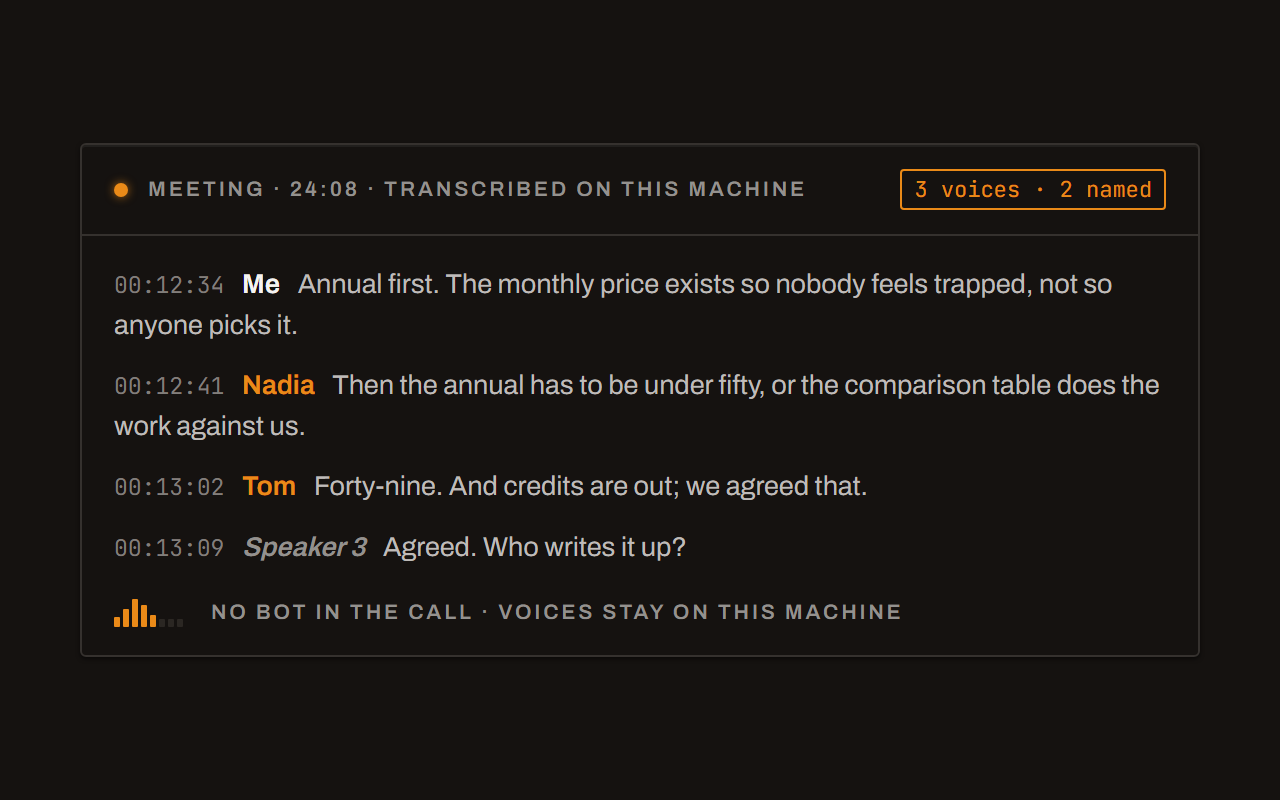
Meetings, no bot, names included
Your microphone and the other side, transcribed on your machine while the call runs. Deixis tells the voices apart and remembers the ones you name, and never uploads a voice.
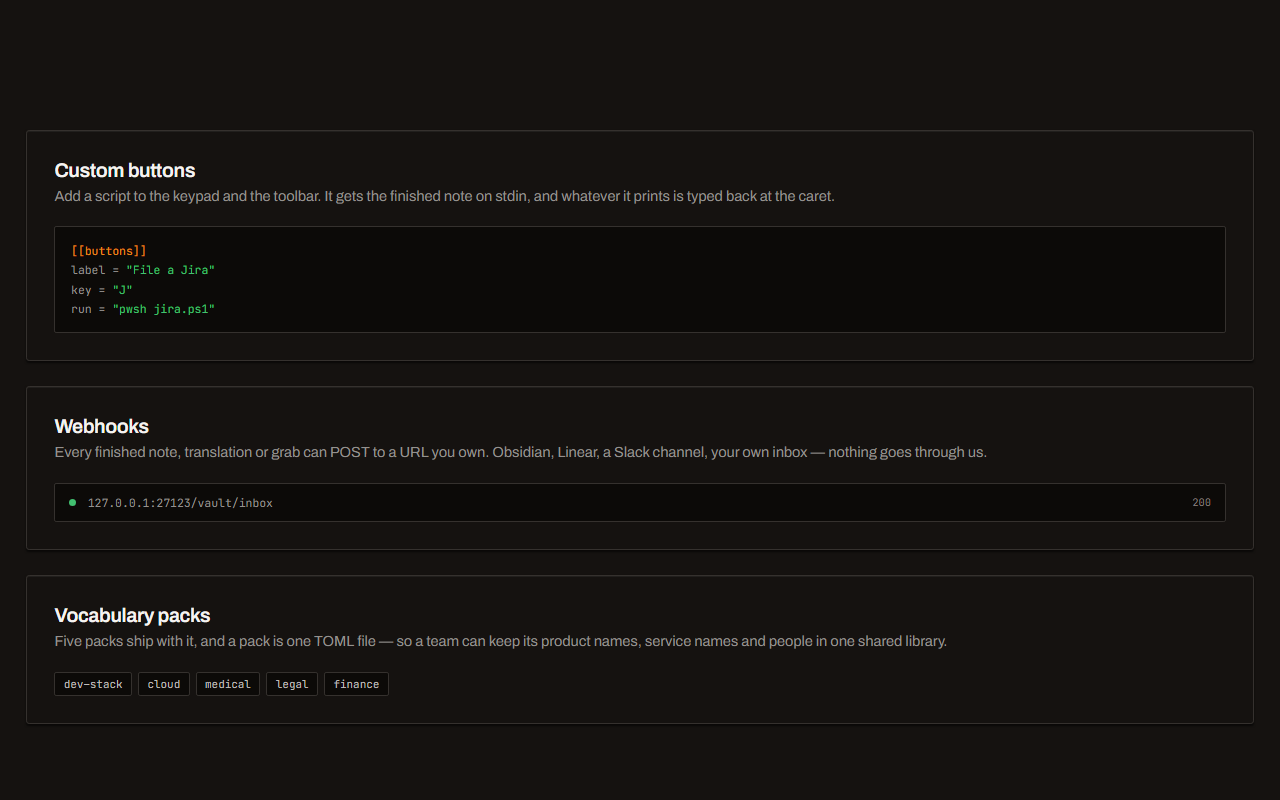
Your own buttons and workflows
Add a button to the palette: it gets the note on stdin and types back whatever it prints. Send finished notes to any URL you own. Chain steps: read the text off a screenshot, translate it, summarise it, post it.
Field by field
The same voice, punctuated for wherever you are in Cursor
Deixis knows which app and which field your words are going into — the name of the app and the name of the control, never the window title and never what is on your screen. A prompt, a message and a commit line therefore come out differently. Here is the editor and the terminal beside it, kind by kind.
| Where you are | What you say | What Deixis types |
|---|---|---|
| A prompt to the agentthe agent prompt in Cursor | “um, pull the retry logic out of the fetch helper into its own module and give it a test for the case where the server answers 429 twice” | Pull the retry logic out of the fetch helper into its own module, and give it a test for the case where the server answers 429 twice.The filler goes, the sentence gets a capital and a full stop. A long instruction is where speaking beats typing by the most. |
| An instruction in a rules filea rules file, open in the editor | “prefer shad kin components and keep use effect out of the render path” | Prefer shadcn components, and keep useEffect out of the render path.Your dictionary fixes shadcn and useEffect on this machine, before anything is sent anywhere and before any cleanup sees it. |
| A code commenta comment above the function you are looking at | “this runs before the migration so the column may still be null on a cold deploy” | This runs before the migration, so the column may still be null on a cold deploy.A comment is one sentence, punctuated as one sentence, and left otherwise as you said it. |
| A commit messagethe source control message box, or the terminal | “fix the race in the release poller it was reading the feed twice on a cold start” | Fix the race in the release poller: it was reading the feed twice on a cold start.A commit line is punctuated as a line. The same words in a chat window would come out as two sentences. |
| A pull request descriptionthe PR body, on the review page in your browser | “this moves the retry off the hot path so the first render doesn't wait on the network um and it adds a timeout” | This moves the retry off the hot path, so the first render doesn't wait on the network. It also adds a timeout.A long field gets sentences, because Deixis knows it is a body and not a one-line box. |
Cursor facts from its docs, docs_index, changelog_2_0, changelog_3_1, its privacy policy, shortcuts, downloads and mobile, read on 7 September 2026. Everything about Deixis on this page is from its README for the current release.
Worth knowing about Cursor
- Cursor has voice input of its own. Its 2.0 release notes put it plainly: “Control Agent with your voice using built-in speech-to-text conversion.” You can also define custom submit keywords in settings, so a spoken word can start the agent running.
- The 3.1 release notes describe the current shape: press and hold Ctrl+M to speak, with a waveform, a timer and cancel and confirm buttons while it records. It records the full clip and transcribes it with batch speech-to-text afterwards, rather than as you talk.
- Where that audio goes is a question their own pages leave open. Cursor's privacy page describes prompts and code context being sent to model providers, and Privacy Mode as the switch that stops code being used for training; it says nothing about voice recordings either way.
- Voice lives in Cursor's release notes rather than its documentation: the docs index carries no voice or dictation page.
- The keyboard-shortcuts help page lists no voice shortcut either, among the AI ones it does list — the sidepanel toggle, inline edit, the mode menu, cycling agent modes and models, and accepting a Tab suggestion.
- Where Cursor beats Deixis on reach: it publishes Linux builds as a .deb and an RPM alongside macOS and Windows, and installs from a single shell command. Deixis has no Linux build.
- Cursor's mobile app is for driving agents, not for writing: it runs on iPhone and iPad, and its own help page says it has no code editing, no terminal and no file browsing, with Android planned and no date given.
Five minutes
Setting it up
About five minutes, and nothing goes into Cursor at all.
Install and fetch the model
One installer, with nothing else to install alongside it. The first launch shows a single Download button for the speech model — about the size of a short video, fetched once, and checked against its published size and hash before it is kept. From then on you are offline unless you choose otherwise.
The gesture
Hold Ctrl+Win, speak, release. That is the whole product. Double-tap it instead and Deixis keeps
listening until you double-tap again, which is the one for a long prompt you have not finished
thinking through. If the chord clashes with something in your setup, Settings captures a new one as
you press it.
Hold the chord a moment longer and a small palette appears with a letter for each mode: S grabs
and annotates a region, M records a meeting, T translates what you have selected, and D puts
the word under your cursor into your dictionary. Ctrl+Win+V records the screen.
Teach it your words
The single biggest improvement, and it costs nothing in speed. Select a word anywhere — a library
name in a README, a symbol in a diff — press Ctrl+Win+D, and it is in your vocabulary. A name it
keeps mishearing can be corrected once and stays corrected. The Dictionary tab is that same
list if you would rather edit it in one place, and the five packs that ship are a click each.
Decide what may leave, once
Settings → Cleanup is the only privacy decision to make, and its default is the quiet one: rules tidy your words on this machine unless you asked for a transform or dictated a long stretch with no punctuation. Set it to never, or leave the endpoint empty, and dictation never touches the network at all. Point it at a model running on your own machine and the better prose stays local too. Whatever you choose, the audio is not part of it — that never leaves, and there is no setting that makes it.
Your own actions, if you want them
Worth ten minutes once. A palette button can run a program with your finished note and type back whatever it prints, so "file a bug about the poller reading the feed twice" becomes a ticket and the ticket's key lands at your caret. Your script gets the note as JSON, arguments are handed to the process as a list so nothing needs escaping, and the first run shows you the exact command line and does nothing until you approve it. Edit the command and it asks again.
A button can also just be steps — translate, summarise, apply an instruction of your own, post to a webhook — with no scripting language at all, and the panel says what each step costs before you add it. Separately, any finished note, grab or translation can be posted to a URL you own, signed and timestamped, retried in the background while your text is already pasted.
Before you ask
Questions people search for
Does Cursor have voice input of its own?
Yes. Its 2.0 release notes announced controlling the agent with your voice using built-in
speech-to-text, with custom submit keywords you can set in settings; 3.1 added press-and-hold
Ctrl+M, a waveform and a timer, and a full clip transcribed in one batch after you stop. It lives
in their release notes rather than their documentation, and where the audio is transcribed is a
question those notes leave open. Many people run both.
Which one should I use?
Use Cursor's if you only ever talk to the agent and you want a spoken word to set it running. Use Deixis if you would rather the audio never left your machine, if you want the same key to work in your email and your tickets as well as the prompt, or if you talk into fields that are not the agent prompt — a comment, a rules file, a commit message, a review.
Can I dictate into the terminal?
Yes. Deixis types where the caret is, and a terminal prompt is a caret like any other. It is one of the places the field-aware punctuation matters most: a line you are about to run is punctuated as a line, not as an email.
Does it work on Linux?
No. Cursor publishes Linux builds and Deixis does not — that one is theirs. Deixis runs on Windows, on Apple Silicon Macs, and on iPhone and Android, with recognition on the device on every one of them.
Do I need an account or a subscription?
No. Dictation, both speech models, the dictionary, meetings, screen grabs and recordings are free with no sign-in at all. The optional cloud cleanup is free too if you bring your own provider key, or if you point it at a model on your own machine. Paying only buys not having to set that up.
Will it work offline?
Completely. With no cleanup endpoint set, dictation, free mode, screen grabs and meeting recording and transcription all run with no network. Two calls a fresh install makes on its own: the update check, and — when you open the Settings window — a check for an announcement from us. Both send nothing but the request.
Keep reading
Related pages
Voice input for your product, without the audio leaving your user
Put voice input in your web or desktop app in about ten lines. Recognition runs on your user's machine, so no audio reaches you, us, or any cloud.
Offline dictation on Windows
Dictation that works with no internet: speech recognition on your own device, free, no account. Which Windows speech-to-text tools genuinely run offline.
Dictation for VS Code
Deixis dictates into VS Code on one key — chat, editor, terminal, and every other window on your machine. Speech recognition on your device, no account.
Dictation for Windows Terminal
Deixis dictates into Windows Terminal on one key — commands, commit messages, long notes. Speech recognition on your own device, offline, with no account.
Dictation for PowerShell
Deixis dictates into PowerShell on one key — the prompt, the script, the commit message. Speech recognition on your own device, no account, free.
Voice dictation for Obsidian
Deixis dictates into Obsidian on one key, with no plugin to install. Speech recognition on your own device, and notes that are Markdown files you own.
Hold a key. Speak. Keep working.
Deixis is free, needs no account, and runs on your own device. Everything on this page is in the current release.
v1.2.2 · 64‑bit Windows 10/11 · macOS 13 on Apple silicon · 51 MB · nothing else to install · also for Windows
Facts about Cursor checked on 2026-09-07 against cursor.com. Deixis facts are from its README for the current release. Something out of date? Tell us.