Dictation for Windows Terminal
Terminal work looks like typing and is mostly writing. A commit message. The answer a script is waiting for. The body of a release note. The paragraph in the README you are editing three panes deep. The commands themselves are short and full of symbols, but the prose around them is long, and prose is the part that is quicker said out loud than typed.
Deixis is voice input for exactly that. Hold Ctrl+Win, say the sentence, let go, and clean
punctuated text is typed straight at the caret in the tab you were already looking at, with your
clipboard handed back the way you left it. There is nothing to install into Windows Terminal, no window to
switch to, no transcript to copy across, and no account to make.
That is the whole idea. Deixis is not a Windows Terminal feature and not a plugin or an extension for anything: it types wherever your cursor already is, so the one key that dictates your command dictates your commit message, your email, your ticket and your chat as well. One voice input for the whole machine, not one per app — on Windows, Mac, iPhone and Android, with speech recognition on the device every single time and audio that never leaves it.
Why Deixis
What it gives you in Windows Terminal, and what it will not do
Why Deixis in Windows Terminal
- One key for every field on the machine. Windows Terminal hosts everything — PowerShell, Command Prompt, a WSL distribution, Azure Cloud Shell, Git Bash — and Deixis is a plugin for none of them, which is why it works in all of them. It types at the caret, so the same gesture covers the shell prompt, the editor you opened inside a pane, your browser, your ticket tracker and your chat. Learn it once and it is everywhere, including on the Mac and on your phone.
- Your voice never leaves the machine, and there is nothing to sign in to. Recognition runs inside Deixis, on your own processor, with no account and no telemetry. Nothing on your machine is metered or gated: dictation, both speech models, the dictionary, meetings, screen grabs, screen recording, your own buttons and webhooks are free forever with no sign-in at all.
- It punctuates for the field it is typing into. A command line, a commit message, a yes-or-no answer and a long release note all read differently, and Deixis knows which one it has, because the name of the app and the name of the control travel with your words. Never the window title, and never anything on your screen.
- It knows your stack's words.
kubectl,shadcn,useEffectand the name of your own service come out spelled the way you write them, corrected on this machine before anything is sent anywhere. Five vocabulary packs ship in the box, the software one is on by default, and adding a word takes one key press. - Talk and point, in one go. Double-tap the key for free mode and Deixis keeps listening while you drag a region of the screen, pick an element or take a selection. What you said and what you pointed at come out as one note — which is most of a good bug report, written in the time it takes to describe the failure.
- Grabs and recordings, on the same chord.
Ctrl+Win+Sfreezes the screen to drag a region and annotate it — arrows, boxes, a highlighter, pixelate to redact — and every save stays re-editable.Ctrl+Win+Vrecords the screen with your narration to a video and writes it up with a title and a summary on your own machine. Turning that recording into a link is the one part that needs a Deixis account; whoever you send it to needs none, and you set how long it lives — 1 to 90 days — and can revoke it. - Meetings that stay on your machine.
Ctrl+Win+Mrecords the microphone and the system output and transcribes both here, with no key, no account and no network. The transcript is a Markdown file in your own folder, and none of it is metered. It tells the remote voices apart and remembers the ones you name, and the voiceprint that does it stays on the machine, is never uploaded, and can be deleted per person. - Your own buttons and workflows. Put a button on the palette that runs your program with the finished note and types whatever it prints straight back at the caret: file the ticket, get the key back where your cursor is. Chain steps together as plain settings — read the text off a screenshot, translate it, summarise it, post it — with no scripting language involved. Or send every finished note, grab and translation to a URL you own, signed with HMAC and a timestamp so your receiver can verify it and refuse a replay.
- Everything is a file you own. Notes, transcripts, recordings, screenshots, your dictionary and every setting sit in one folder as ordinary files, and your dictation history has its own tab with an export. Back it up, grep it from the very prompt you dictated into, uninstall tomorrow and it is all still there.
What it will not do
- It is not a keyboard replacement. Flags, paths, pipes and braces are still faster typed, and this page is not going to pretend otherwise. Deixis is for the words: the message, the answer, the note, the paragraph. Dictate the sentence, type the switches.
- It does not read your screen or your session. Deixis sends the name of the app and the field, never their contents, so it cannot see the stack trace your last command just printed. You still have to say what you mean.
- It does not drive your PC by voice. There are no "click that", "scroll down" or "switch tab" commands. Windows voice access does that job, on-device and without the internet, and if hands-free control is what you need then that is the tool for it, not this one.
- It types in English only. The speech models are English models. Windows voice typing covers dozens of languages; if you dictate in one of them, this is not yours yet.
- It will not transcribe a file you hand it. Deixis transcribes what it records — your dictation, your meetings, your screen recordings. Dropping in an existing audio file is not in it.
- No Linux build, and no PC older than 2013. The speech engine is compiled against an instruction set that arrived in 2013, so an older processor stops with an error rather than running slowly. Linux is not planned.
What you get
More than dictation. One key, and everything behind it.
Hold the key and press a letter: free mode, a grab, a meeting, a recording, a translation, your own buttons. All of it on your own device, all of it free, none of it behind an account.
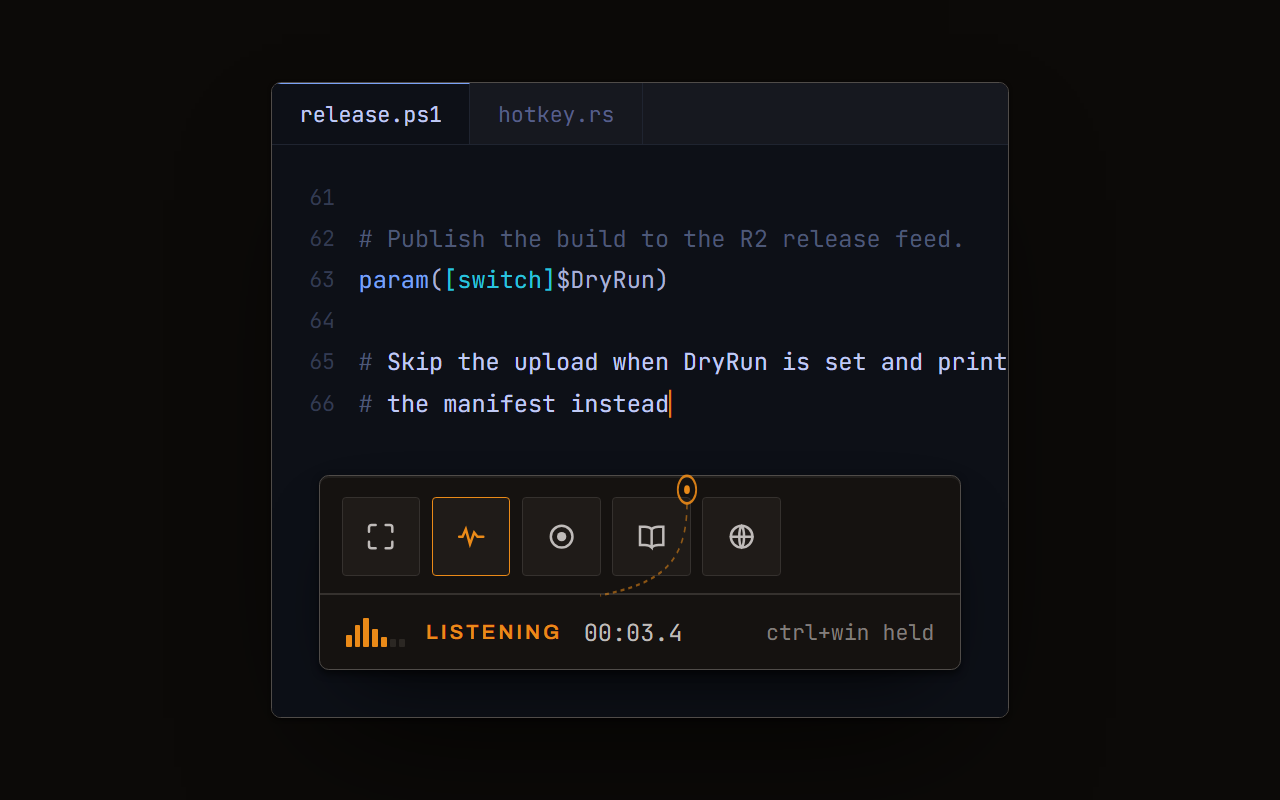
Dictation, where your cursor is
Hold a key, speak, release. Clean, punctuated text lands in whatever has focus, on your PC, your Mac and your phone, with your clipboard handed back.
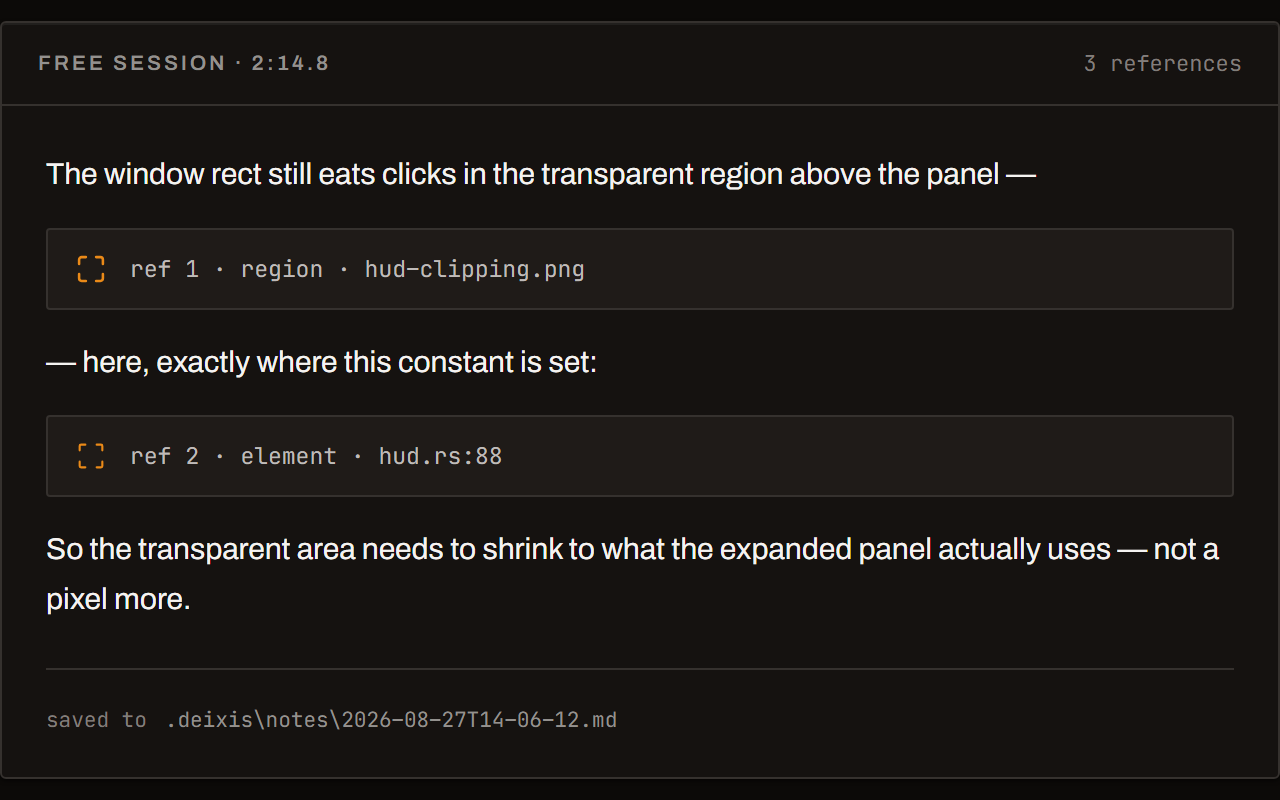
Free mode: talk and point
Narrate for as long as you like while you grab a region, pick a button on screen or take a selection. One note, what you said interleaved with what you pointed at, pasted where you finish and saved as Markdown.
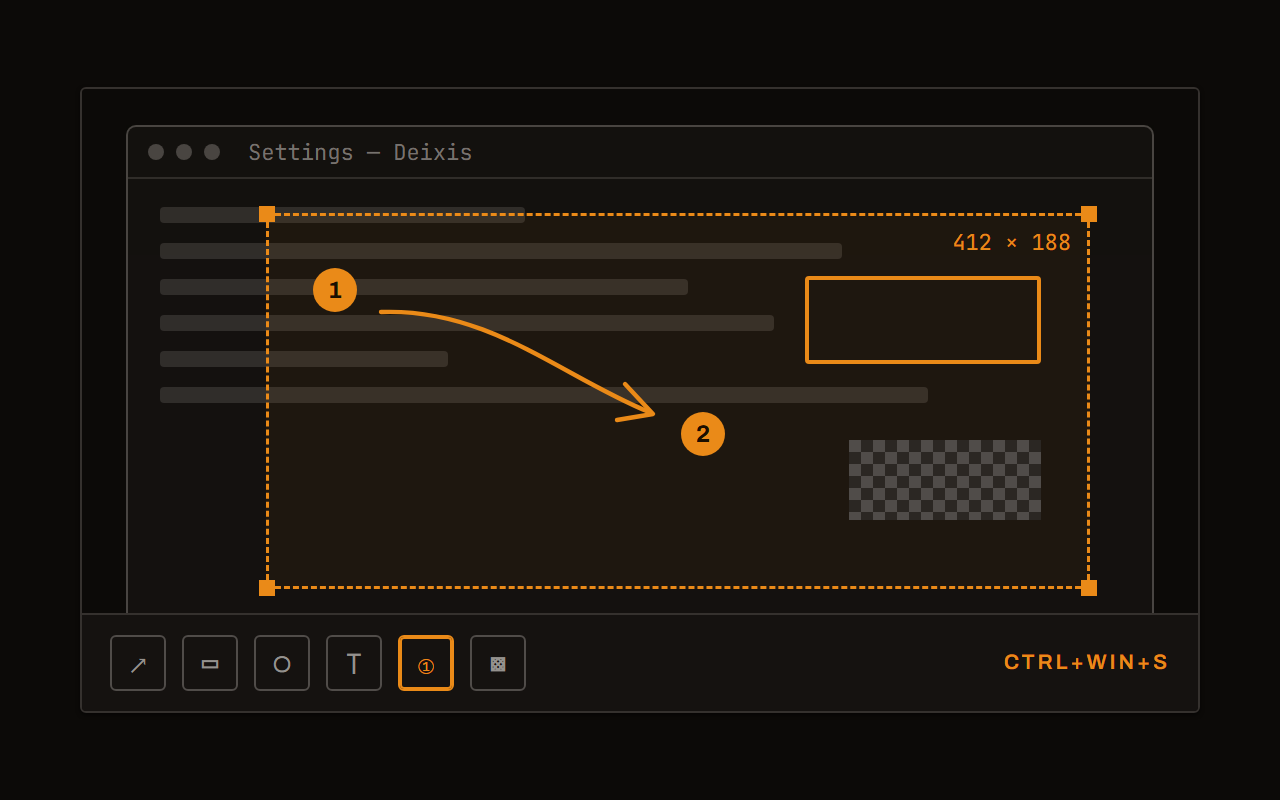
Screen grabs, annotated
Freeze every screen at the keypress, drag a region, add arrows, boxes, text and numbered steps, and pixelate what is private. Saved as a PNG that stays editable.
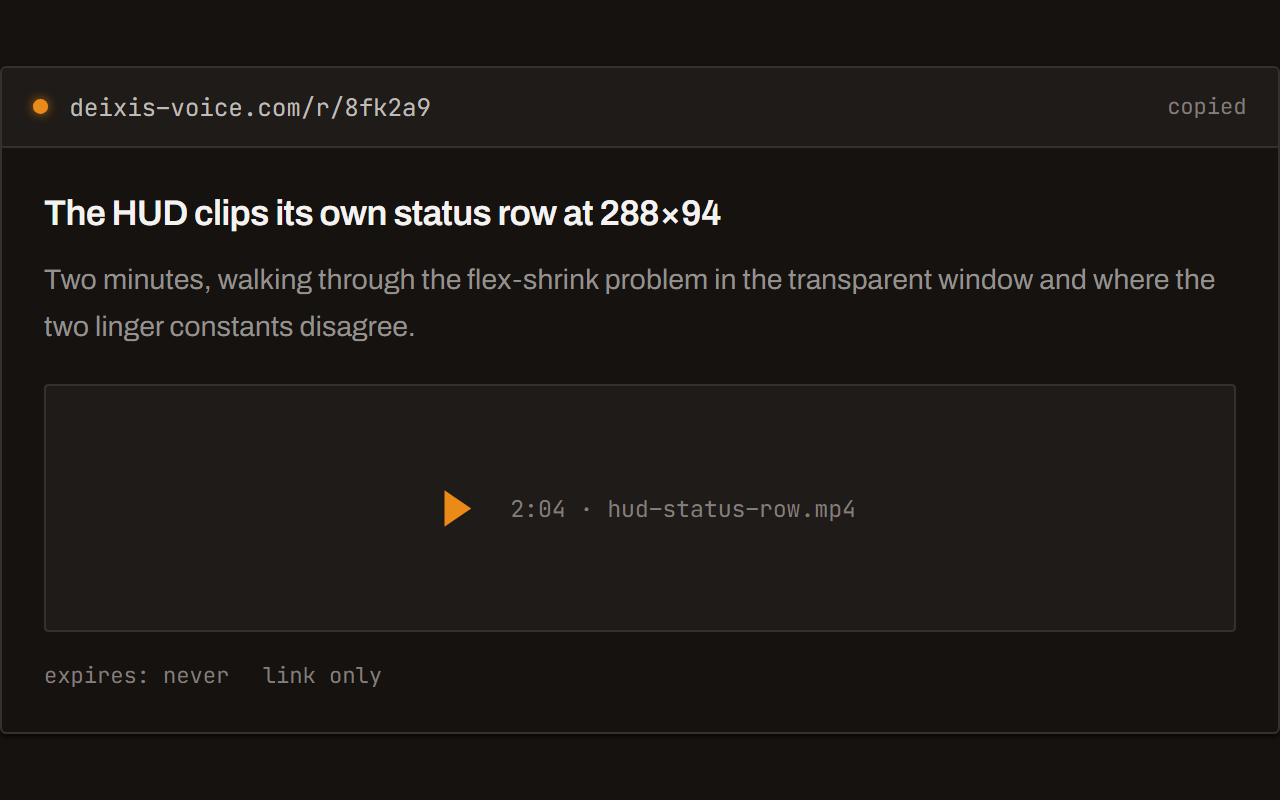
Screen recording, shared as a link
Record the screen with your narration. The recording writes itself up with a title, chapters and a summary, and from your Deixis account it shares as a link anyone can open without one. The Loom you can stop paying for.
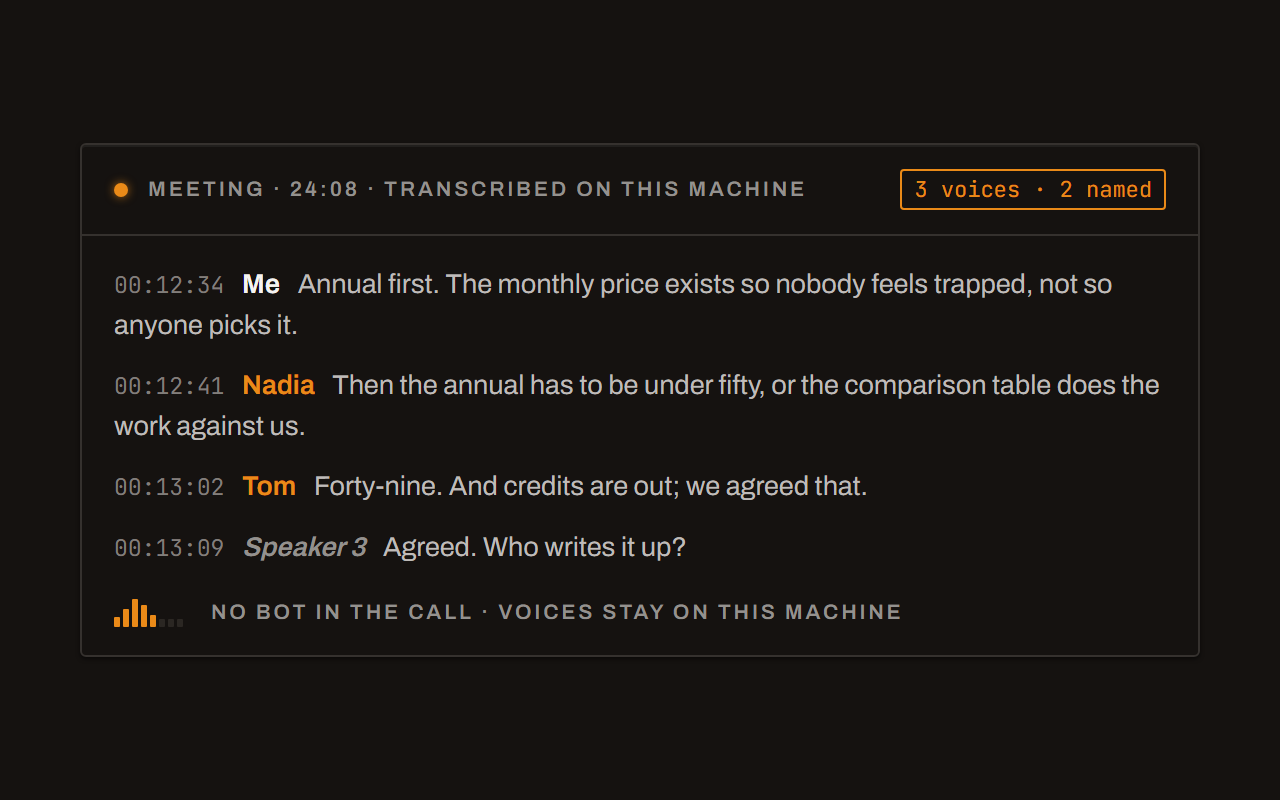
Meetings, no bot, names included
Your microphone and the other side, transcribed on your machine while the call runs. Deixis tells the voices apart and remembers the ones you name, and never uploads a voice.
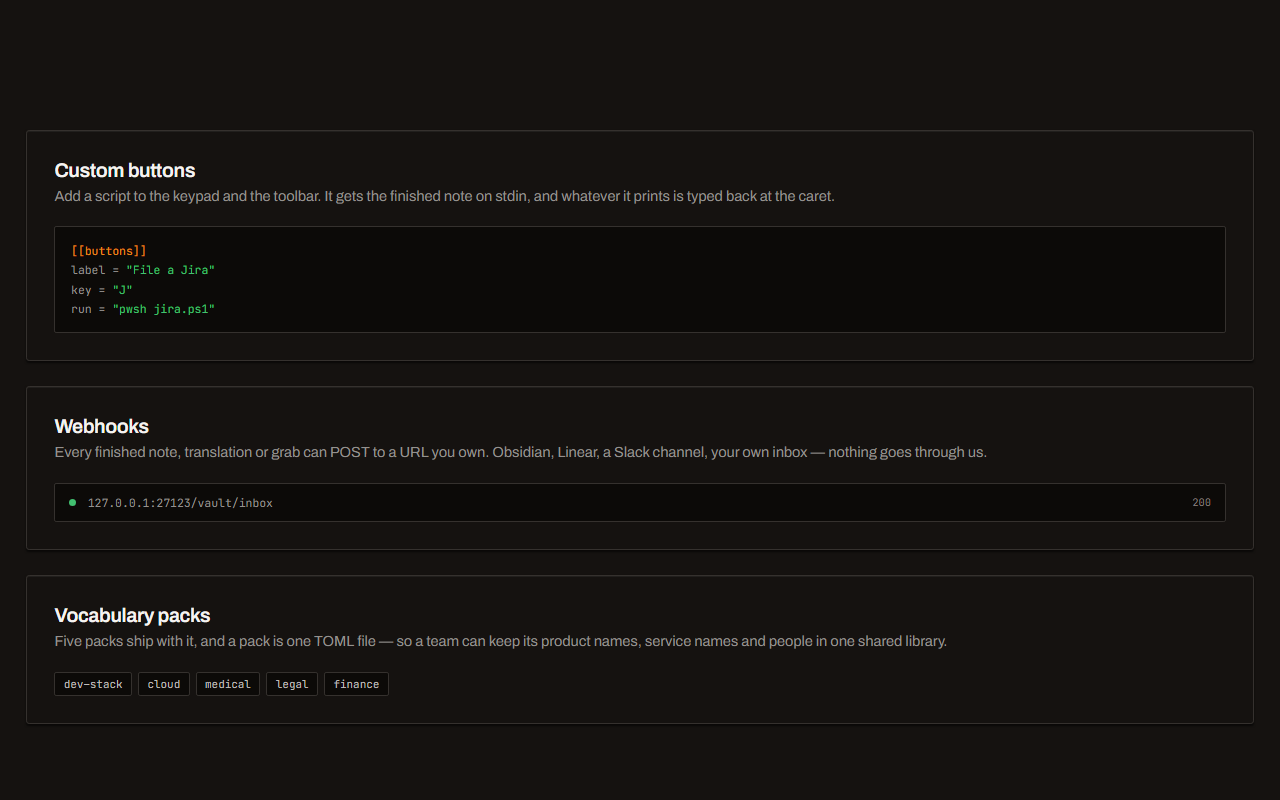
Your own buttons and workflows
Add a button to the palette: it gets the note on stdin and types back whatever it prints. Send finished notes to any URL you own. Chain steps: read the text off a screenshot, translate it, summarise it, post it.
Field by field
The same voice, punctuated for wherever you are in Windows Terminal
Deixis knows which app and which field your words are going into — the name of the app and the name of the control, never the window title and never what is on your screen. A prompt, a message and a commit line therefore come out differently. Here is the shell prompt, in a tab or a pane, kind by kind.
| Where you are | What you say | What Deixis types |
|---|---|---|
| A command you are about to runthe shell prompt, in a Windows Terminal tab | “um kubey cuttle get pods” | kubectl get podsThe filler goes and your dictionary fixes the tool's name on this machine. The line is left as a line — not capitalised, not turned into a sentence. The flags after it are still faster typed, and that is the honest half of this example. |
| A commit message typed at the promptthe message after git commit -m, in a Terminal tab | “bump the read timeout in the sync worker um it was giving up before the first retry” | Bump the read timeout in the sync worker: it was giving up before the first retry.A commit line is punctuated as one line. The same words dictated into a chat window would come out as two sentences. |
| An answer to an interactive promptthe question a script or a CLI installer stops on | “yes but skip the migrations for now” | Yes, but skip the migrations for now.A short reply is punctuated as a short reply and otherwise left alone. Nothing is rewritten, expanded or reworded. |
| A long message body or here-doca here-doc, or the body a release tool asks you to type in | “this release moves the cleanup call off the hot path so the insert doesn't wait on the network and it adds a timeout uh with some headroom for a cold start” | This release moves the cleanup call off the hot path, so the insert doesn't wait on the network. It also adds a timeout, with some headroom for a cold start.A long field gets sentences, because Deixis knows it is typing into a body and not into a one-line box. |
| A note in a terminal-based editora README or a commit body open in an editor inside a Terminal pane | “the poller reads the feed through hyper drive so keep the query inside the worker” | The poller reads the feed through Hyperdrive, so keep the query inside the worker.Your vocabulary spells Hyperdrive the way you write it, fixed on this machine before anything is sent anywhere. |
Windows Terminal facts from overview, faq, install, voice-typing, speech-privacy and voice-access, read on 7 September 2026. Everything about Deixis on this page is from its README for the current release.
Worth knowing about Windows Terminal
- Microsoft describes Windows Terminal as "a modern host application for the command-line shells you already love, like Command Prompt, PowerShell, and bash (via Windows Subsystem for Linux (WSL))", with tabs, panes, Unicode and UTF-8 support, GPU-accelerated text rendering and themes of your own. It is a host, not a shell: "You can run any application with a command line interface inside Windows Terminal."
- Its FAQ says the same thing about breadth — any shell on the machine, "as well as any Linux distribution that can be installed with WSL, Azure Cloud Shell, Git Bash, etc." — and draws the line between a terminal and a shell: a terminal is the graphical application that renders a command-line client's stream of characters.
- Keyboard shortcuts in Windows Terminal are yours to change. Its overview says so directly — "If you don't like a particular keyboard shortcut, change it to whatever you prefer" — and walks through rebinding copy, new tab and tab switching. That matters if any hotkey ever fights another: both sides of this page are remappable.
- Windows has voice typing built in on Windows logo key + H, and Microsoft is plain about where it happens: "Voice typing uses online speech recognition, which is powered by Azure Speech services." It also states the conditions — "To use voice typing, you'll need to be connected to the internet, have a working microphone, and have your cursor in a text box."
- Microsoft's own privacy page draws the distinction directly: online speech recognition means "Voice data is sent to Microsoft only to provide the service and create text transcriptions", while device-based speech recognition "Processes your voice locally on your device. No voice data is sent to Microsoft." Voice typing is the online one.
- Windows also has voice access, and it deserves credit: it "enables everyone to control their PC and author text using only their voice and without an internet connection", using on-device speech recognition, on Windows 11 version 22H2 and later. Some languages need a speech pack downloaded first. It is a whole-PC control feature rather than a push-to-talk key.
- Whether Windows voice typing works inside a Windows Terminal window is not documented: Microsoft's page says only that your cursor must be in a text box, and neither the Terminal docs nor the voice typing page says whether a terminal counts as one.
Five minutes
Setting it up
About five minutes, and nothing at all goes into Windows Terminal.
Install and fetch the model
One installer for any 64-bit Windows 10 or 11 PC, per-user and with no admin prompt, and nothing else to install alongside it. The first launch shows a single Download button for the speech model — about the size of a short video, fetched once, and checked against a published size and hash before it is kept. After that you are offline unless you choose otherwise. Deixis lives in the notification area, so drag it out of the overflow arrow the first time.
The gesture
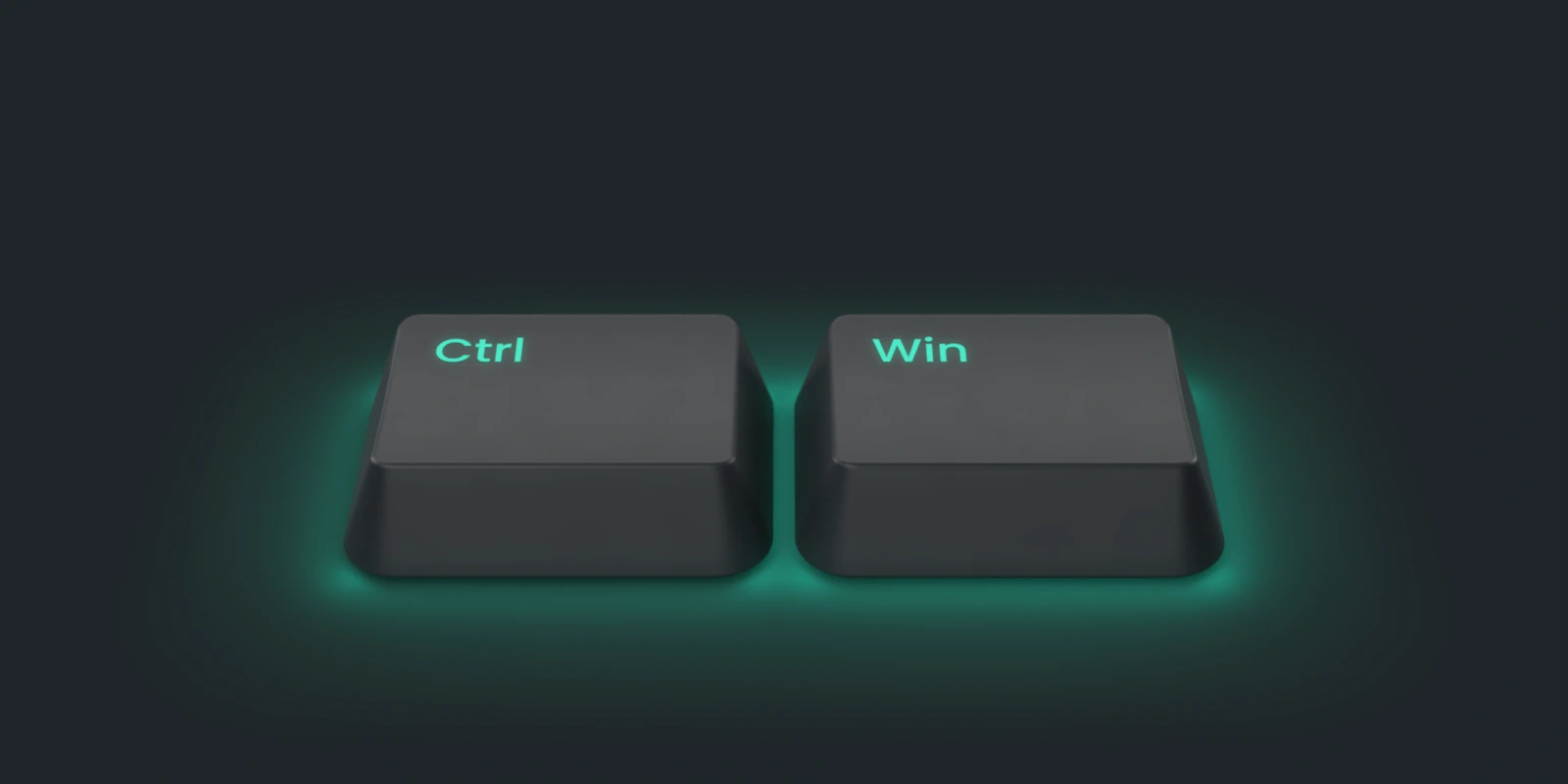
Hold Ctrl+Win, speak, release. That is the product. Double-tap it instead and Deixis keeps
listening until you double-tap again — the one to use for a release note you have not finished
thinking through. Hold the chord a moment longer and a small palette appears with a letter per mode:
S grabs and annotates a region, V records the screen, M records a meeting, T translates
what you have selected, D puts the word under your cursor into your dictionary.
The chord is remappable in Settings, which captures a new one as you press it. Ctrl+Win was chosen
because almost nothing listens for it, and Windows Terminal's own shortcuts are just as remappable from its
settings if you ever want the other half of the fix.
Teach it your words
The single biggest accuracy win, and the only one that costs nothing in speed. Select a word
anywhere — a package name in a README, a flag in a help output, your service's name in a log — press
Ctrl+Win+D, and it is in your vocabulary. A name it keeps mishearing can be corrected once and
stays corrected. The Dictionary tab is that same list in one place, and the five packs that ship
are a click each.
Decide what may leave, once
Settings → Cleanup is the one privacy decision, and the default is the quiet one: rules tidy your words on this machine unless you asked for a transform or dictated a long stretch with no punctuation. Set it to never, or leave the endpoint empty, and dictation touches the network not at all. Point it at a model running on your own machine and the better prose stays local too. Whatever you pick, the audio is not part of it — that never leaves, and no setting makes it.
Your own actions, if you want them
Worth ten minutes once. A palette button can run a program with your finished note and type back whatever it prints, at the caret, through the same path dictation uses. Your script gets the note as JSON; arguments are handed to the process as a list, so no shell sees them and nothing needs escaping; and the first run shows you the exact command line and does nothing until you approve it. Edit the command and it asks again. A button can also be nothing but steps — translate, summarise, apply an instruction of your own, post to a webhook — built in the Buttons panel, which has ready-made ones a click adds.
Before you ask
Questions people search for
Can I really dictate into a terminal?
Yes. Deixis types where the caret is, and a shell prompt is a caret like any other. The terminal is also where the field-aware punctuation earns its keep: a command line stays a line, a commit message gets one clause and a full stop, and a long body gets sentences.
Windows already has voice typing. Why this?
Because of where your voice goes. Microsoft's own page says voice typing "uses online speech recognition, which is powered by Azure Speech services", and that to use it "you'll need to be connected to the internet, have a working microphone, and have your cursor in a text box". Their privacy page puts it plainly: with online recognition, voice data is sent to Microsoft. Whether a Windows Terminal window counts as a text box at all is not documented either way. Deixis transcribes inside itself, on your processor, offline, in every app on the machine.
What about Windows voice access?
Give it credit: voice access controls the PC and authors text with on-device speech recognition and works without the internet, on Windows 11 22H2 and later. It is a different shape of tool — a hands-free control system you speak commands to, with a speech pack to download for some languages. Deixis is one key you hold when you want to say a sentence, and it stays out of the way the rest of the time. Plenty of people would want both.
Will it work offline?
Completely. With no cleanup endpoint set, dictation, free mode, screen grabs and meeting recording and transcription all run with no network at all. Two calls a fresh install makes on its own: the update check, and — when you open the Settings window — a check for an announcement from us. Both send nothing but the request — the version comparison happens on your machine.
Do I need an account or a subscription?
No. Dictation, both speech models, the dictionary, meetings, screen grabs and screen recording are free with no sign-in whatsoever. The optional cloud cleanup is free too if you bring your own provider key, or if you point it at a model running on your own machine. Paying only buys not having to set that up.
Does it work outside Windows Terminal too?
Everywhere. It is not an extension for one app: it types at the caret in whatever has focus, so your editor, your browser, your email, your ticket tracker and your chat all take the same key — and so do the Mac, the iPhone keyboard and the Android bubble. What changes between them is the punctuation, from the name of the app and the field it is typing into.
Keep reading
Related pages
Voice input for your product, without the audio leaving your user
Put voice input in your web or desktop app in about ten lines. Recognition runs on your user's machine, so no audio reaches you, us, or any cloud.
Offline dictation on Windows
Dictation that works with no internet: speech recognition on your own device, free, no account. Which Windows speech-to-text tools genuinely run offline.
Dictation for PowerShell
Deixis dictates into PowerShell on one key — the prompt, the script, the commit message. Speech recognition on your own device, no account, free.
Voice dictation for Obsidian
Deixis dictates into Obsidian on one key, with no plugin to install. Speech recognition on your own device, and notes that are Markdown files you own.
Dictation for Jira
Deixis dictates Jira tickets on one key. Narrate a bug while you grab the screen, get one note with the picture in it, then file it from a button.
Dictation for Slack
Deixis dictates into Slack on one key — channel replies, threads, DMs and canvases. Speech recognition on your own device, no account, free.
Hold a key. Speak. Keep working.
Deixis is free, needs no account, and runs on your own device. Everything on this page is in the current release.
v1.2.2 · 64‑bit Windows 10/11 · macOS 13 on Apple silicon · 51 MB · nothing else to install · also for Windows
Facts about Windows Terminal checked on 2026-09-07 against learn.microsoft.com. Deixis facts are from its README for the current release. Something out of date? Tell us.