Dictation for PowerShell
PowerShell is a shell you can read out loud. Microsoft's own docs describe the naming as a verb-noun
pair — the verb is the action, the noun is the thing it acts on — and the verbs come from a short
published list, so Restart-Service and Import-Module and ConvertFrom-Json are already English
sentences with the spaces taken out. The work around them is words too: the help block above a
function, the parameter descriptions nobody writes, the commit message, the note in the script, the
message explaining to somebody else what the module is for.
Deixis is voice input for exactly that. Hold Ctrl+Win, say it, let go, and clean punctuated text
is typed where your caret already was — at the prompt, in the editor, in the commit box — with your
clipboard handed back the way you left it. There is no window to switch to, no transcript to copy,
no account to make, and nothing to install into PowerShell.
That last part is the point. Deixis is not a PowerShell module and not an extension for anything: it types wherever your cursor already is, so the one key that dictates your command also dictates your commit message, your email, your ticket and your chat. One voice input for the whole machine, not one per app — and it runs on Windows, Mac, iPhone and Android, with speech recognition on the device every time. Your audio never leaves it, under any setting, on any plan.
Why Deixis
What it gives you in PowerShell, and what it will not do
Why Deixis in PowerShell
- It learns your cmdlets, and that is the whole trick. Unbiased, a speech model hears "convert
from jason" and types it as three words. One line in your dictionary makes it land as
ConvertFrom-Json, verbatim, every time — and the same for your module names, your parameter names and the internal nouns nobody outside your team has ever heard. The fix happens on your own machine, before anything is sent anywhere, and adding a word takes one key press. - Your voice never leaves the machine, and there is nothing to sign in to. Speech recognition runs inside Deixis on your own processor. There is no account, no telemetry, and no setting that makes the audio travel. Windows' own voice typing takes the other road, and Microsoft says so plainly: it needs an internet connection and uses online speech recognition powered by Azure Speech services. Windows voice access is the on-device one, and works without an internet connection — but it is a hands-free control system for the whole PC, not a key you hold.
- One key for every field, not one tool's feature. PowerShell runs on Windows, macOS and Linux and you probably drive it from a terminal, an editor and a CI page in the same hour. Deixis is a plugin for none of them: it types at the caret, so the same gesture works at the prompt, in the script, in the pull request body and in the reply you owe somebody — and on your Mac and your phone with the same on-device recognition.
- Free, with no account, forever. Dictation, both speech models, the dictionary, meetings, screen grabs, screen recording, your own buttons and webhooks: all of it free, none of it behind a sign-in. Deixis never asks you to make an account to dictate.
- Talk and point at the same time. Double-tap the key for free mode and Deixis keeps listening while you drag a region of the screen, pick a control or grab a selection. What you said and what you pointed at come out as one note — which is most of a bug report about a script that failed four hosts into a run, written in the time it takes to describe it.
- Show the failure instead of describing it.
Ctrl+Win+Sfreezes the screen so you can drag, annotate, redact and copy a region.Ctrl+Win+Vrecords the screen with your narration, writes it up on your own machine with a title and a summary. Turning that into a link somebody can open with nothing to install and no account of their own is the one step that needs a Deixis account. - Meetings, transcribed on this machine.
Ctrl+Win+Mrecords the microphone and, where it can, the system audio, and transcribes both as they run — with no key, no account and no network. It tells the remote voices apart and remembers the ones you name, and the voiceprint that does it stays on the machine, is never uploaded, and can be deleted per person. The transcript is Markdown in a folder you own, and the audio stays on the machine like every other recording. - Your own buttons, running your own scripts. Put a button on the mode palette that runs a program with your finished note and types back whatever it prints, straight at the caret — file the ticket and get its key back, open the branch, post the note. Or chain steps together as plain settings: read the text off a screenshot, translate it, summarise it, post it. The first run of a command button shows you the exact command line and does nothing until you approve it.
- A signed webhook to your own URL. Every finished note, grab or translation can be posted to an endpoint you own, with an HMAC signature and a timestamp so your receiver can prove where it came from and refuse a replay. Delivery retries in the background and never blocks your text. Your URLs are yours; they do not pass through anybody's cloud.
- Everything is a file you own. Notes, transcripts, recordings, screenshots, your dictionary and every setting sit in one folder as ordinary files, and your dictation history has its own tab with an export. Back it up, grep it, uninstall tomorrow and it is all still there.
What it will not do
- It does not read your screen or your session. Deixis is dictation, not an agent. It knows the name of the app and the field it is typing into, never their contents, so it cannot see the error the last command printed. You still have to say what you mean.
- It types in English only. The speech models are English models. Windows' own voice typing lists forty-odd languages; if you write your help blocks in one of them, that is the better tool for that part and this is not yours yet.
- It will not transcribe a file you hand it. Deixis transcribes what it records — your dictation, your meetings, your screen recordings. Drop-a-file transcription is not in it.
- No Linux build, and no PC older than 2013. PowerShell itself is happy on Linux; Deixis is not there. The speech engine is compiled against an instruction set that arrived in 2013, so an older processor stops with an error rather than running slowly.
- It is not a keyboard replacement. Flags, paths, braces and pipes are still faster typed, and a long command line is a bad thing to dictate. Deixis is for the prose half of the work — which, in a module you expect somebody else to read, is more of it than you think.
- It does not know your module on its own. The dictionary is a key press, not nothing, but it is a key press: names you have never taught it come out as the speech model heard them.
What you get
More than dictation. One key, and everything behind it.
Hold the key and press a letter: free mode, a grab, a meeting, a recording, a translation, your own buttons. All of it on your own device, all of it free, none of it behind an account.
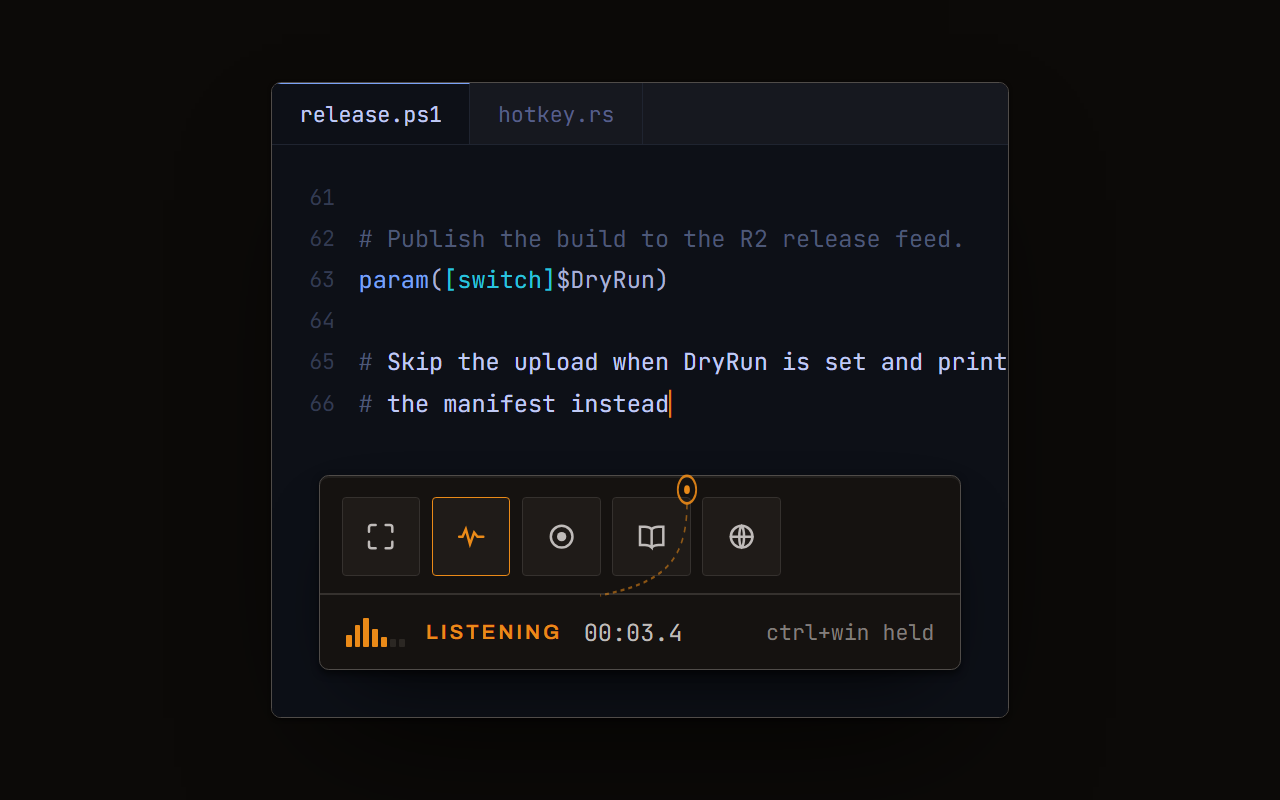
Dictation, where your cursor is
Hold a key, speak, release. Clean, punctuated text lands in whatever has focus, on your PC, your Mac and your phone, with your clipboard handed back.
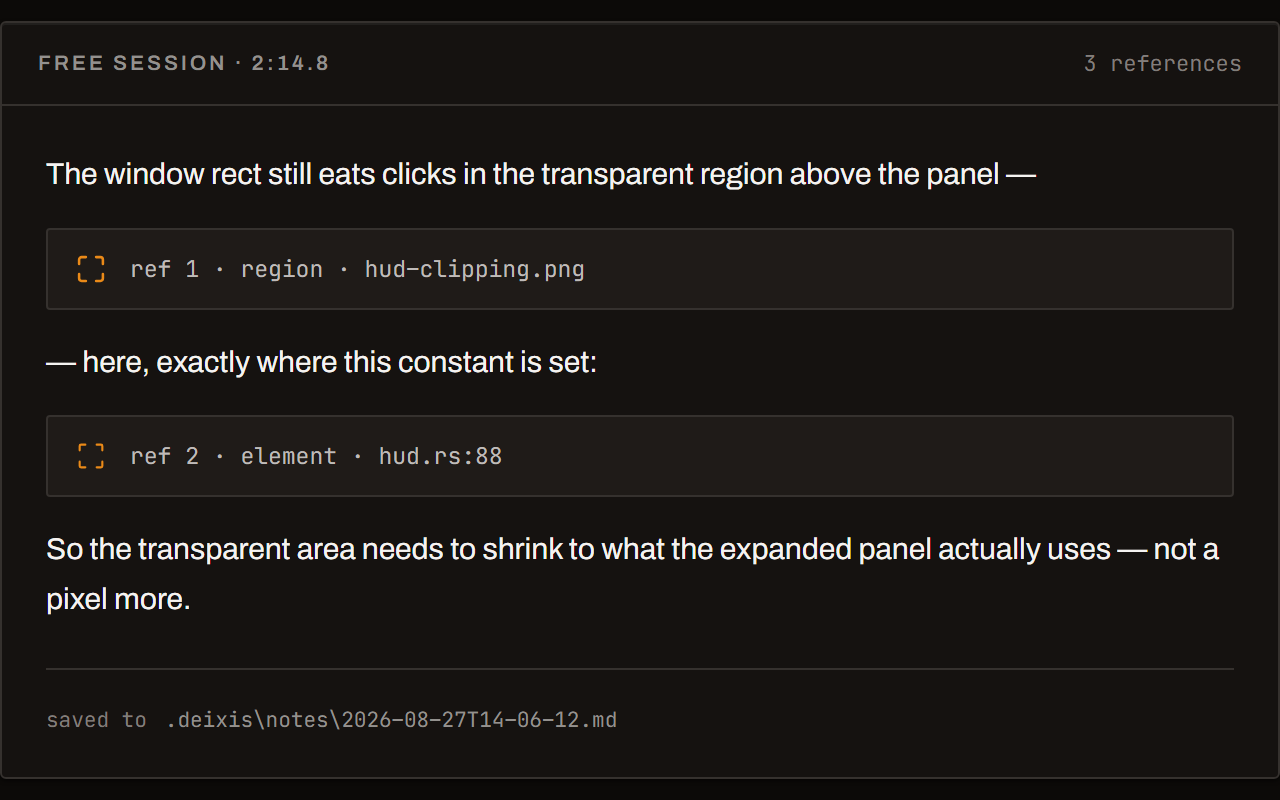
Free mode: talk and point
Narrate for as long as you like while you grab a region, pick a button on screen or take a selection. One note, what you said interleaved with what you pointed at, pasted where you finish and saved as Markdown.
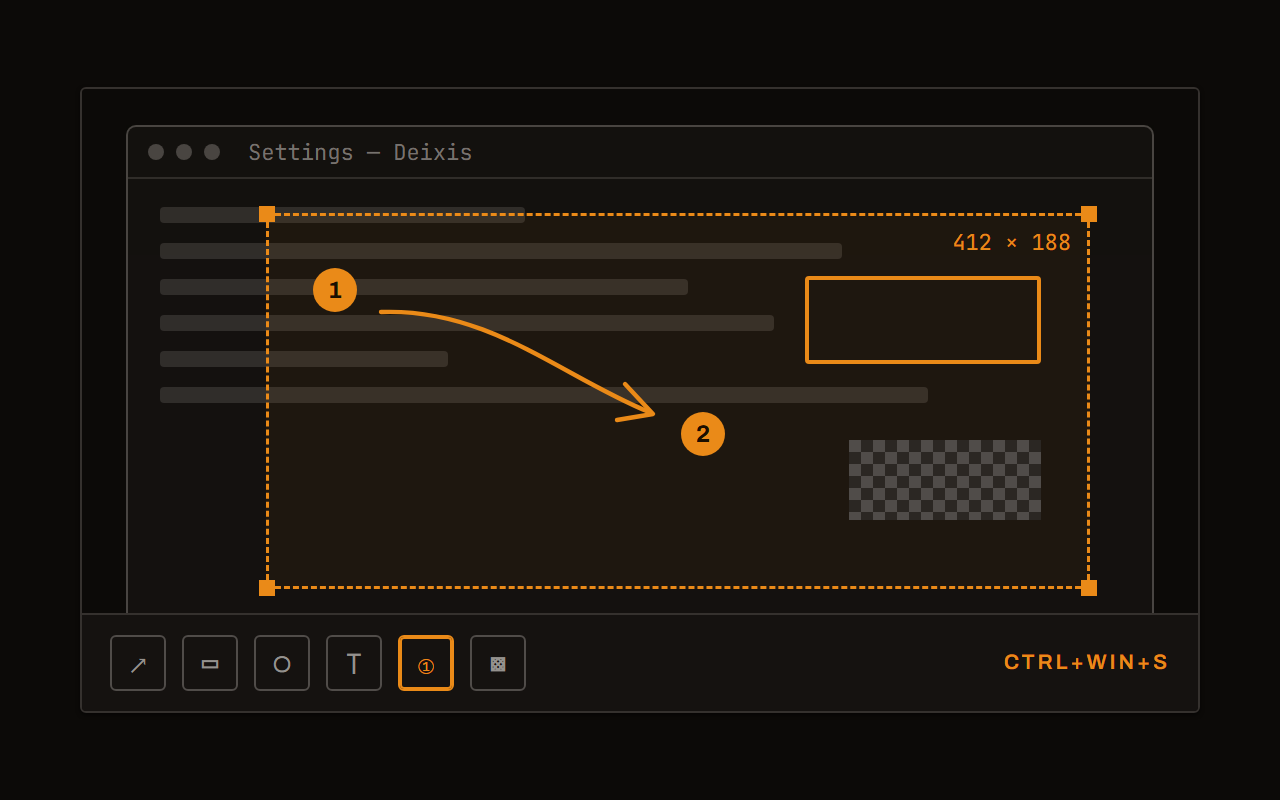
Screen grabs, annotated
Freeze every screen at the keypress, drag a region, add arrows, boxes, text and numbered steps, and pixelate what is private. Saved as a PNG that stays editable.
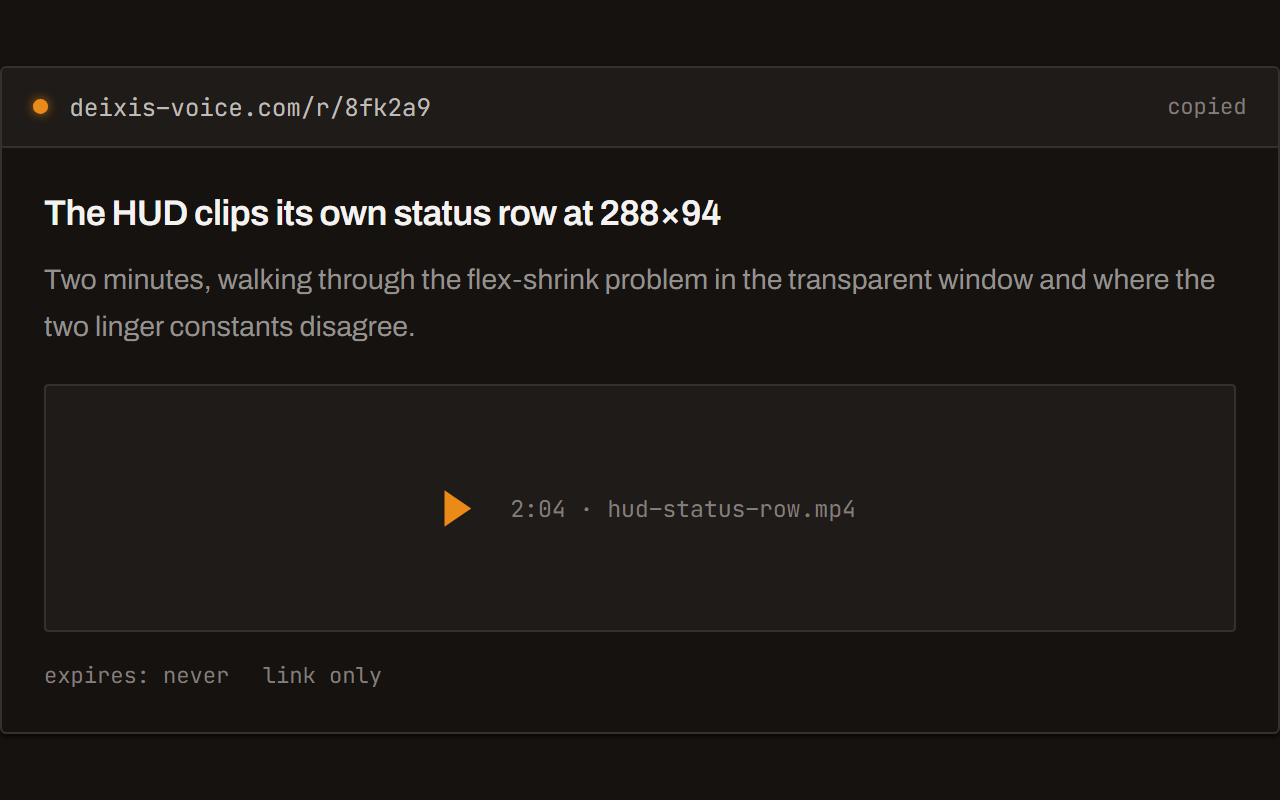
Screen recording, shared as a link
Record the screen with your narration. The recording writes itself up with a title, chapters and a summary, and from your Deixis account it shares as a link anyone can open without one. The Loom you can stop paying for.
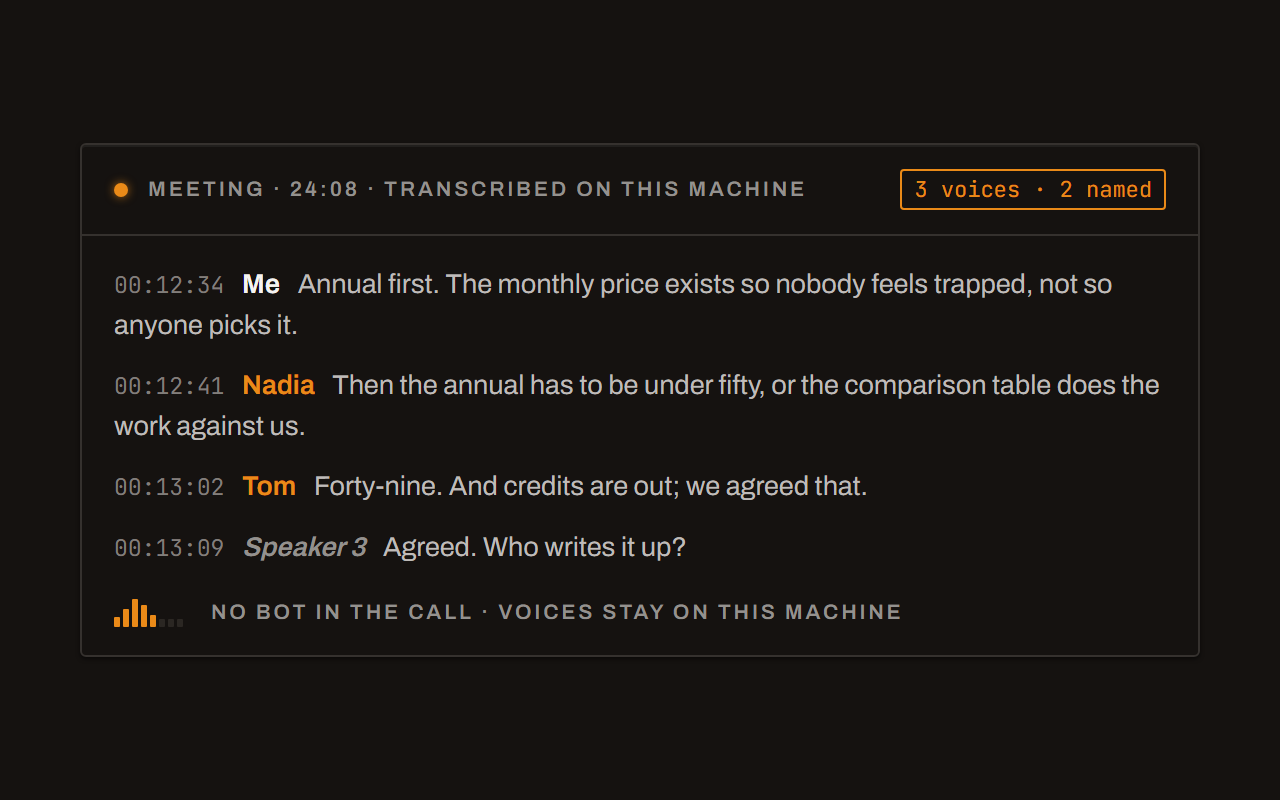
Meetings, no bot, names included
Your microphone and the other side, transcribed on your machine while the call runs. Deixis tells the voices apart and remembers the ones you name, and never uploads a voice.
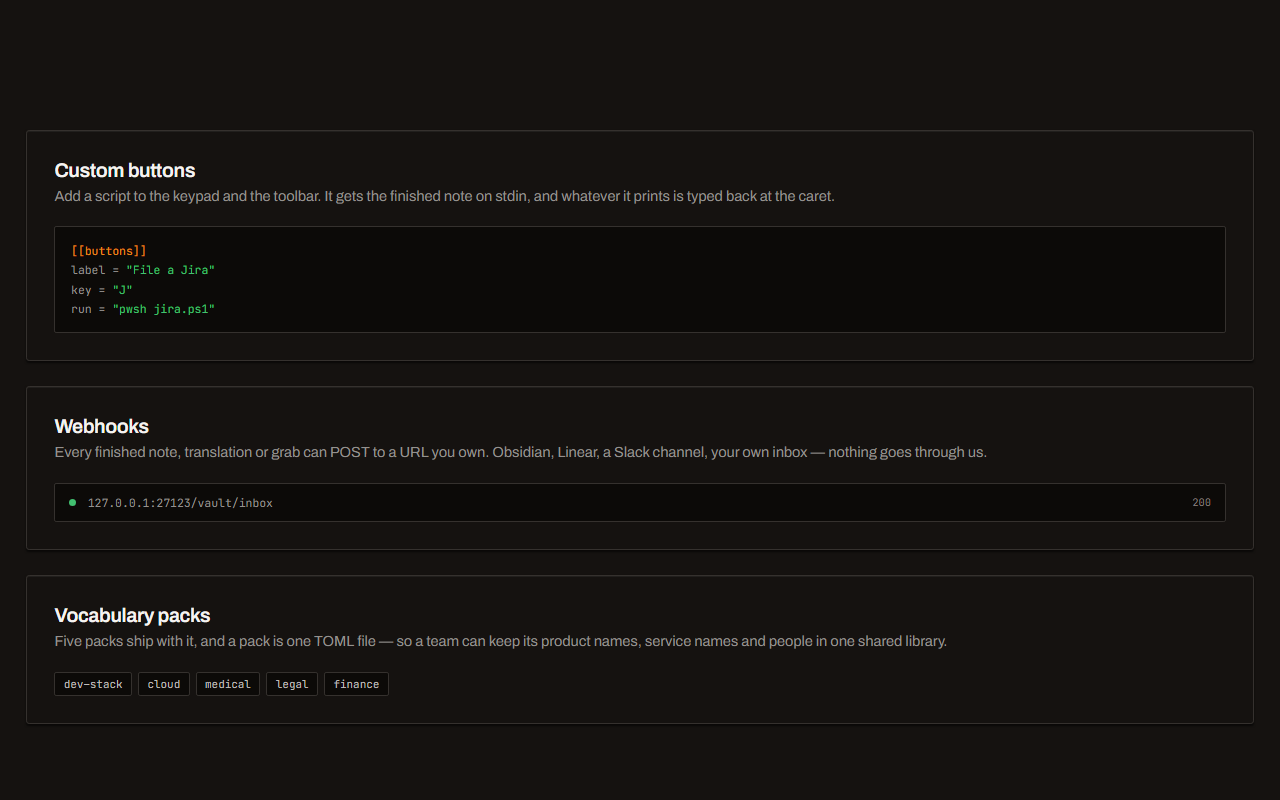
Your own buttons and workflows
Add a button to the palette: it gets the note on stdin and types back whatever it prints. Send finished notes to any URL you own. Chain steps: read the text off a screenshot, translate it, summarise it, post it.
Field by field
The same voice, punctuated for wherever you are in PowerShell
Deixis knows which app and which field your words are going into — the name of the app and the name of the control, never the window title and never what is on your screen. A prompt, a message and a commit line therefore come out differently. Here is the shell prompt and the script beside it, kind by kind.
| Where you are | What you say | What Deixis types |
|---|---|---|
| A cmdlet you are about to runthe PowerShell prompt, in Windows Terminal or the console host | “invoke rest method then convert from jason” | Invoke-RestMethod then ConvertFrom-JsonTwo lines in your dictionary turn a spoken verb-noun pair into the cased, hyphenated name. The fix happens on your machine, before anything is sent anywhere. |
| A comment-based help blockthe .SYNOPSIS and .DESCRIPTION lines above a function, in your editor | “um adds a file name extension to a supplied name it takes any strings for the file name or the extension” | Adds a file name extension to a supplied name. It takes any strings for the file name or the extension.Help content is ordinary English prose. The filler goes, and two run-on clauses become two sentences. |
| A long parameter descriptionthe .PARAMETER block for one parameter, in a script file | “specifies the path to the csv based input file wild cards are accepted and a relative path is resolved against the current location” | Specifies the path to the CSV-based input file. Wildcards are accepted, and a relative path is resolved against the current location.A long field gets sentences and commas. Parameter descriptions are the part of a module nobody writes, because typing them is slow and saying them is not. |
| A commit messagethe terminal, or your Git client's message box | “make start service wait for the pipe instead of sleeping for two seconds” | Make Start-Service wait for the pipe instead of sleeping for two seconds.A cmdlet name keeps its capitals inside an ordinary sentence, and a commit line is punctuated as a line rather than as a paragraph. |
| A note in a scripta # comment beside the line you would otherwise forget about | “this whole block runs before the module is imported so keep it dependency free” | This whole block runs before the module is imported, so keep it dependency-free.A comment is prose too, and it is the thing most likely to go unwritten. One held key is cheaper than the decision to bother. |
PowerShell facts from overview, verbs, guidelines, help, install, voicetyping and voiceaccess, read on 7 September 2026. Everything about Deixis on this page is from its README for the current release.
Worth knowing about PowerShell
- Microsoft's own overview calls PowerShell “a cross-platform task automation solution made up of a command-line shell, a scripting language, and a configuration management framework”, and says plainly that it runs on Windows, Linux and macOS.
- The naming is the reason PowerShell dictates unusually well: “PowerShell uses a verb-noun pair for the names of cmdlets… The verb part of the name identifies the action that the cmdlet performs. The noun part of the name identifies the entity on which the action is performed.” The approved verbs are a short published list, grouped as common, communications, data, diagnostic, lifecycle, security and other, and Get-Verb prints all of them.
- Microsoft's verb guidance is strict in a way that helps a dictionary: use only the listed form of a verb, never a synonym — “always use Remove, never use Delete or Eliminate” — and never Getting or Gets. A finite set of first words is a finite set of things a speech model has to learn.
- The development guidelines ask for Pascal case in both cmdlet names and parameter names — Clear-ItemProperty, ErrorAction — and for singular nouns, Get-Process rather than Get-Processes. That is exactly the shape a transcript loses and a replacement line puts back.
- PowerShell itself is case-insensitive by default, and case-preserving: “if a character is supplied in uppercase letters, Windows PowerShell keeps it in uppercase letters.” So a lower-cased cmdlet name still runs — it just reads wrong in the script and the pull request afterwards.
- Comment-based help is written as ordinary comments with dotted keywords — .SYNOPSIS, .DESCRIPTION, .PARAMETER, .EXAMPLE — and Get-Help displays it in the same format as a shipped cmdlet's. Microsoft's own worked examples run to a sentence or two per parameter, and the page notes a description "can include paragraph breaks": English prose, in a code file.
- Microsoft's own install pages cover Windows, macOS and Linux, and beyond the three desktops they cover Windows IoT and Nano Server, Arm processors and running PowerShell inside a Docker container. Wherever you are running it, you are typing into a text field on a machine in front of you.
- Windows has voice typing on Win+H, and Microsoft's page is clear about the trade: “To use voice typing, you'll need to be connected to the internet, have a working microphone, and have your cursor in a text box”, and “Voice typing uses online speech recognition, which is powered by Azure Speech services.” Whether it reaches a console window is not documented on that page.
- Windows also ships voice access, which Microsoft describes as controlling your PC and authoring text “without an internet connection”, using on-device speech recognition after language files are downloaded once during setup. It is an accessibility feature for driving the whole machine by voice rather than a dictation key.
Five minutes
Setting it up
About five minutes, and nothing goes into PowerShell at all.
Install and fetch the model
One installer, and nothing else to install with it — no runtime, no redistributable. The first launch shows a single Download button for the speech model: about the size of a short video, fetched once, and checked against its published size and hash before it is kept. From then on you are offline unless you choose otherwise.
The gesture
Hold Ctrl+Win, speak, release. That is the whole product. Double-tap it instead and Deixis keeps
listening until you double-tap again, which is the one for a long help block you have not finished
thinking through. Hold the chord a moment longer and a small palette appears with a letter per
mode: S grabs and annotates a region, V records the screen, M records a meeting, T
translates a selection, and D puts the word under your cursor into your dictionary. If the chord
fights something in your setup, Settings captures a different one as you press it.
Teach it your cmdlets
This is the subsection worth ten minutes, and it is the reason this page exists. PowerShell names are
regular in a way that suits a dictionary better than almost anything else you dictate: Microsoft
asks for Pascal case in cmdlet names and parameter names, singular nouns, and only the published
form of an approved verb — never a synonym, never Getting or Gets. That is a small, closed,
predictable vocabulary, and once you have taught it, it stays taught.
Two halves of the dictionary do two different jobs, and cmdlet names want the second one. The first
is a list of words the speech model should expect, which biases the transcription itself — good for
a module name or a product noun you say constantly, and capped at thirty-six terms because past
that the accuracy measurably drops. The second is corrections, applied to the finished transcript
at word boundaries, matched without regard to case, landing exactly as you wrote them. Those are
unbounded, and they are what turns "invoke rest method" into Invoke-RestMethod, "get a d user"
into your team's spelling of it, and a plural noun the model guessed into the singular one the
guidelines asked for.
Adding one takes no editing at all: select the word anywhere — in a script, in a help page, in a
diff — and press Ctrl+Win+D. The Dictionary tab is the same list if you would rather see it
all in one place, and five vocabulary packs ship in the box with the software one on by default.
Worth knowing where the ceiling is. PowerShell is case-insensitive by default and case-preserving, so a lower-cased cmdlet name still runs — it just reads wrong in the file and in the review afterwards. And the optional cleanup pass rewrites prose, not hearing: it is deliberately forbidden from re-casing anything but the first character, precisely so it cannot undo the work your dictionary just did. Mishearings are the dictionary's job, and only the dictionary's.
Decide what may leave, once
Settings → Cleanup is the one privacy decision, and its default is the quiet one: rules handle your words on this machine unless you asked for a transform or dictated a long stretch with no punctuation. Set it to never, or leave the endpoint empty, and dictation never touches the network at all. Point it at a language model running on your own machine and the better prose stays local too. Whatever you choose, the audio is not part of it — that never leaves, and there is no setting that makes it.
Your own buttons and webhooks
A palette button can run a program with your finished note and type its output back at your caret, which is a natural fit here: you already have a script for the thing. Your script receives the note as JSON, arguments are handed to the process as a list so nothing needs escaping and nothing can be injected, and the first run shows you the exact command line and waits for your approval — editing the command asks again. A button can also just be steps in a settings file, with a template library of ready-made ones a click adds. And separately, any finished note, grab or translation can be posted to a URL you own, signed, with every attempt shown in the Activity feed.
Before you ask
Questions people search for
Can I dictate straight into a PowerShell prompt?
Yes. Deixis types where the caret is, and a shell prompt is a caret like any other, in Windows Terminal or the console host. It is one of the places the field-aware punctuation earns its keep: a line you are about to run is punctuated as a line, not as an email.
What about Windows voice typing on Win+H?
It is a different bargain, and Microsoft states it openly: voice typing needs an internet connection, needs your cursor in a text box, and uses online speech recognition powered by Azure Speech services. Whether it reaches a console window is not documented on that page. Deixis transcribes inside itself on your own processor, with no account and no connection, which is the whole reason it exists.
Will it actually get cmdlet names right?
Not on day one, and then permanently after that. Out of the box a speech model hears
ConvertFrom-Json as three ordinary words; one correction line in your dictionary makes it land
cased and hyphenated from then on, and correction lines are unbounded. The verb half helps you here
— the approved verb list is short and closed, so the first word of almost every command is one your
dictionary already knows.
Does it work in my editor and my terminal both?
Everywhere, with the same key. Deixis is not an extension for a particular terminal or a feature of a particular editor: it types at the caret in whatever has focus, so VS Code, Windows Terminal, your Git client, your ticket tracker and your browser's address bar all take the same gesture. What changes between them is the punctuation.
Do I need an account or a subscription?
No. Dictation, both speech models, the dictionary, meetings, screen grabs and screen recordings are free with no sign-in at all. The optional cloud cleanup is free too if you bring your own provider key, or point it at a language model on your own machine. Paying only buys not having to set that up.
Will it work offline?
Completely. With no cleanup endpoint set, dictation, free mode, screen grabs and meeting recording and transcription all run with no network. Two calls a fresh install makes on its own: the update check, and — when you open the Settings window — a check for an announcement from us. Both send nothing but the request.
Keep reading
Related pages
Voice input for your product, without the audio leaving your user
Put voice input in your web or desktop app in about ten lines. Recognition runs on your user's machine, so no audio reaches you, us, or any cloud.
Offline dictation on Windows
Dictation that works with no internet: speech recognition on your own device, free, no account. Which Windows speech-to-text tools genuinely run offline.
Voice dictation for Obsidian
Deixis dictates into Obsidian on one key, with no plugin to install. Speech recognition on your own device, and notes that are Markdown files you own.
Dictation for Jira
Deixis dictates Jira tickets on one key. Narrate a bug while you grab the screen, get one note with the picture in it, then file it from a button.
Dictation for Slack
Deixis dictates into Slack on one key — channel replies, threads, DMs and canvases. Speech recognition on your own device, no account, free.
Dictation for Microsoft Teams
Deixis dictates into Microsoft Teams on one key, and records and transcribes your calls on your own machine. No bot in the call, no account, free.
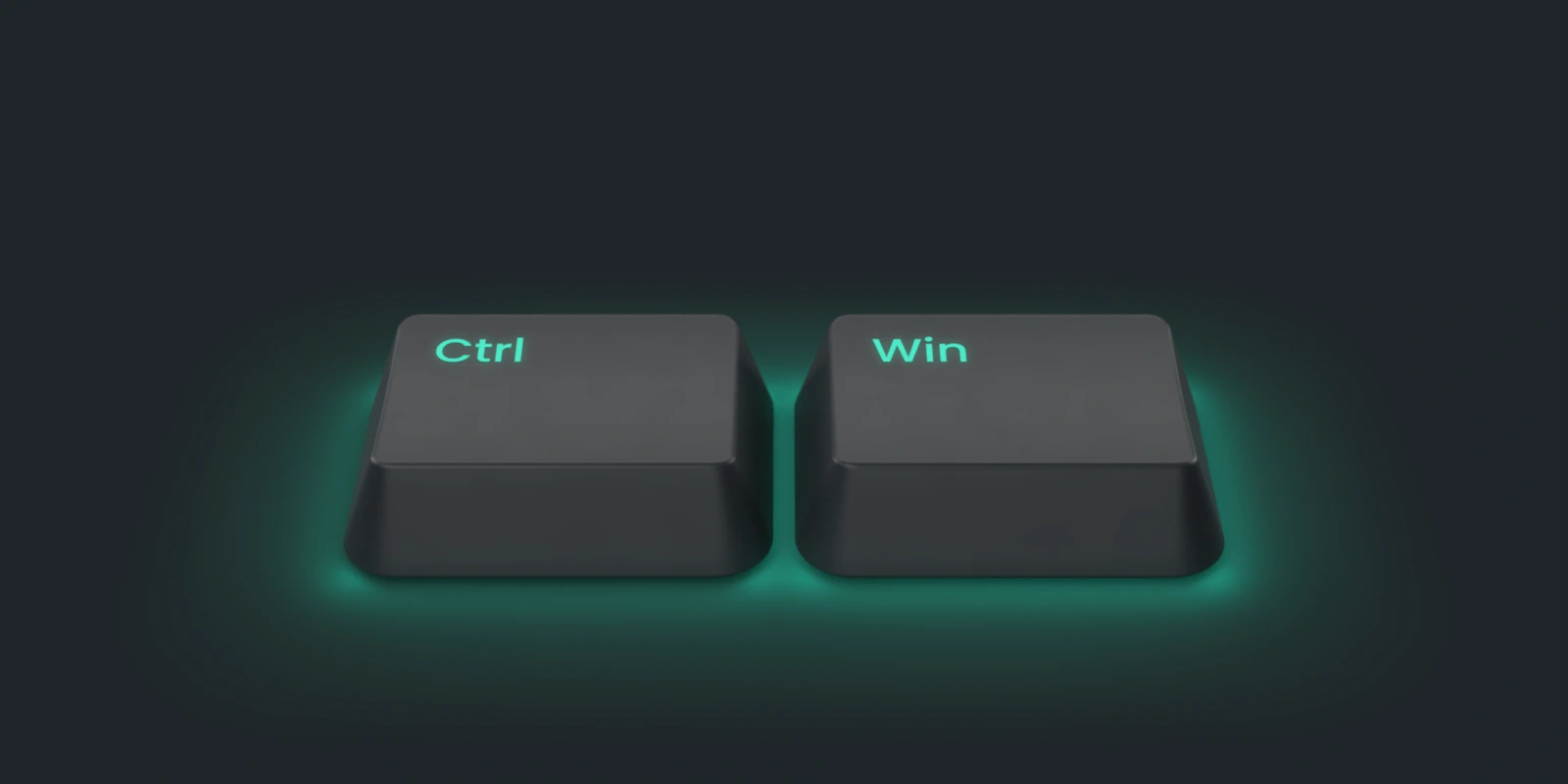
Hold a key. Speak. Keep working.
Deixis is free, needs no account, and runs on your own device. Everything on this page is in the current release.
v1.2.2 · 64‑bit Windows 10/11 · macOS 13 on Apple silicon · 51 MB · nothing else to install · also for Windows
Facts about PowerShell checked on 2026-09-07 against learn.microsoft.com. Deixis facts are from its README for the current release. Something out of date? Tell us.