Dictation for VS Code on a Mac
In VS Code, the code is only half of what you write. The other half is sentences: a question in the chat panel, the comment that explains a workaround, the commit message, the pull request, the reply to your reviewer. On a Mac those sentences are spread across the editor, the browser and your chat app, and every one of them is quicker said than typed.
Deixis types them wherever you are. Hold Ctrl+Option, speak, let go, and punctuated text appears
at the caret in VS Code, or in whichever app you have moved on to, with your clipboard as you left
it. The speech is recognised by Deixis on your Mac, and the audio of your dictation stays there.
No extension, and no sign-in.
VS Code has dictation of its own, and on an Apple Silicon Mac it is a real option: its docs say it recognises speech on the device by default. The two differ in where they reach, and in what they send once you stop talking.
Why Deixis
What it gives you in VS Code, and what it will not do
Why Deixis in VS Code
- It carries on past the edge of the editor. VS Code's dictation covers its chat, its editors and its terminal. Deixis covers those, then the pull request in your browser, the ticket, Slack, Mail and the address bar, with the same chord, the same dictionary and the same punctuation. It is an app on your Mac rather than a part of one editor, so it goes where you go.
- Dictation is the product, not an experiment. VS Code's docs mark built-in dictation experimental, with a warning that it "might change or be removed", and it is there only while AI features are enabled. Deixis is dictation first, it asks for no account of any kind, and it behaves the same in every window.
- Rules first, and the model is your call. VS Code's dictation runs a language-model cleanup by default, and its voice page says the transcript text, though not the audio, then goes to a Copilot model. Deixis's default tidies your words with rules on the Mac and asks a model only when you asked for a transform or dictated a long stretch with no punctuation. Set it to Never and dictation does not touch the network at all.
- Punctuated for the field you are in. A chat question gets its question mark, a comment is one line, a commit is a subject line and a pull request body gets sentences. When cleanup hands your words to a model, the name of the app and the name of the field go with them, which is how it knows. The window title never goes, and nothing on your screen does either.
- Your words, spelled your way. Add
useEffect, "DOM" or your service names in the Dictionary window once, and they are corrected on the Mac, before cleanup sees them, in every app you dictate into. The software development pack is switched on from the start. - Point, grab, record. Double-tap the chord for free mode and tap it for the toolbar: take a
selection or grab a region while you keep talking, and get one note back with both in order.
Ctrl+Option+Sgrabs and annotates a region of the screen, andCtrl+Option+Vrecords the screen to a video on your Mac. - Free, for everything that runs on your Mac. Dictation, free mode, the dictionary, grabs and recordings, with no account. Pro, at $49 a year, is the cloud cleanup with no key of your own to obtain.
What it will not do
- It understands English only. The speech model is an English model. VS Code's dictation takes a language hint and defaults to your system language, so for anything else, theirs is the one to use.
- It does not turn speech into shell syntax. VS Code's terminal dictation drops ordinary punctuation and converts spoken symbol names into symbols. Deixis types a spoken symbol name as a word, so paths, pipes and flags are still yours to type.
- It does nothing for an Intel Mac. VS Code's docs say its built-in dictation is not available on Intel-based Macs and point to the separate VS Code Speech extension instead. Deixis needs Apple Silicon and macOS 13 or later, so on an Intel Mac that extension is your answer.
- It does not learn your project by reading it. Deixis sees the name of the app and the field, never the files open in them, so your symbol names reach it only when you put them in the Dictionary window.
- No translate key on the Mac yet. On Windows, Deixis translates a selection in a popup at the cursor, and the Android app translates too; your own palette buttons and webhooks run on Windows. None of that, nor meeting transcription, is in the Mac build today.
What you get
More than dictation, on your Mac.
Hold Ctrl+Option and speak, or press a letter while you hold it: free mode, a grab, a screen recording. All of it on your Mac, all of it free, none of it behind an account.
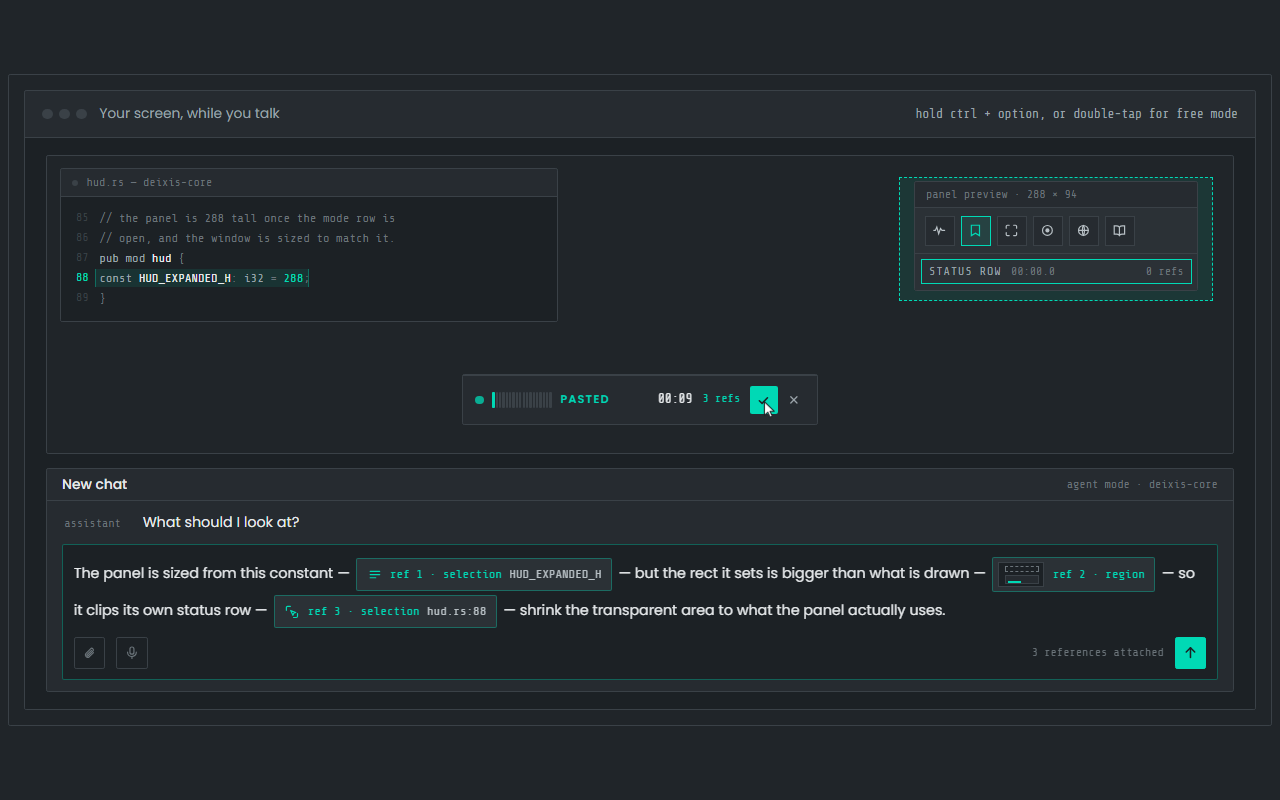
Dictation, where your cursor is
Hold Ctrl+Option, speak, release. Clean, punctuated text lands in whatever app has focus on your Mac, with your clipboard handed back.
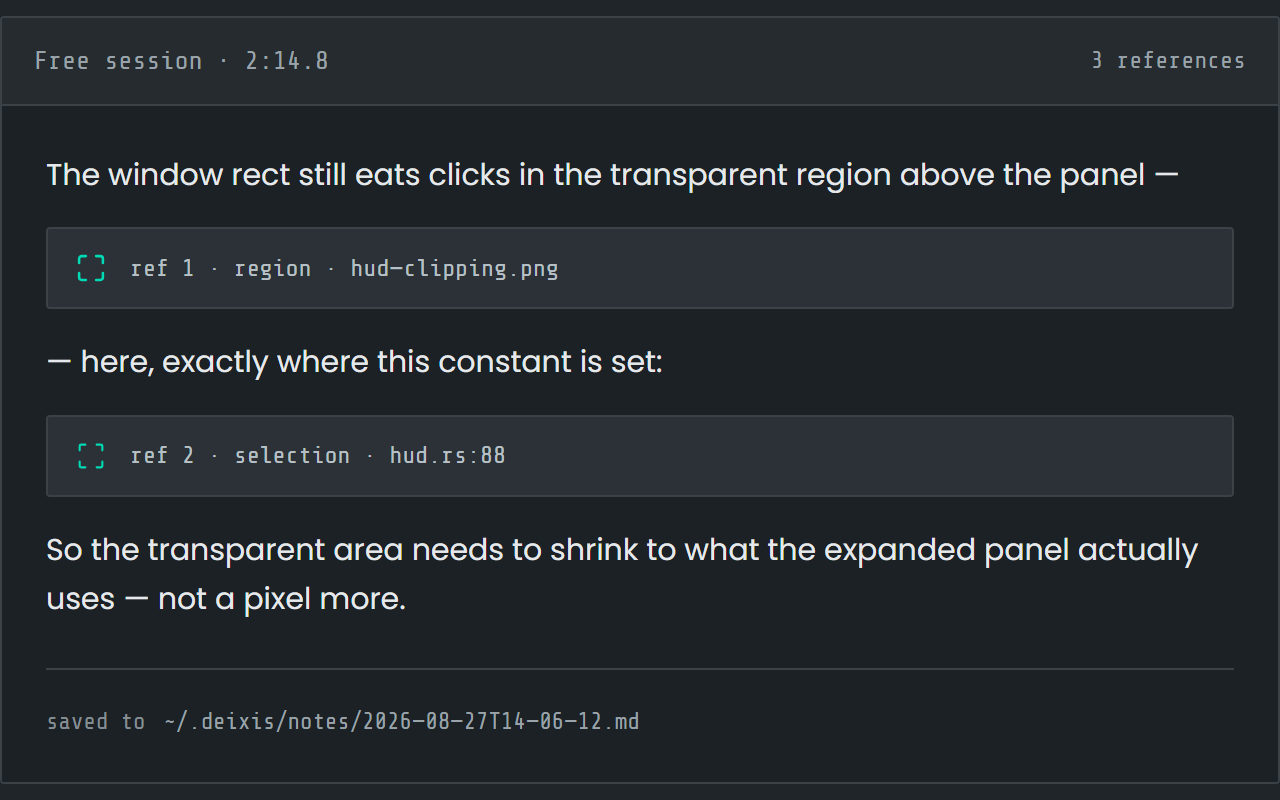
Free mode: talk and point
Double-tap the chord and narrate for as long as you like while you grab a region or take a selection. One note, what you said interleaved with what you pointed at, pasted where you finish and saved as Markdown.
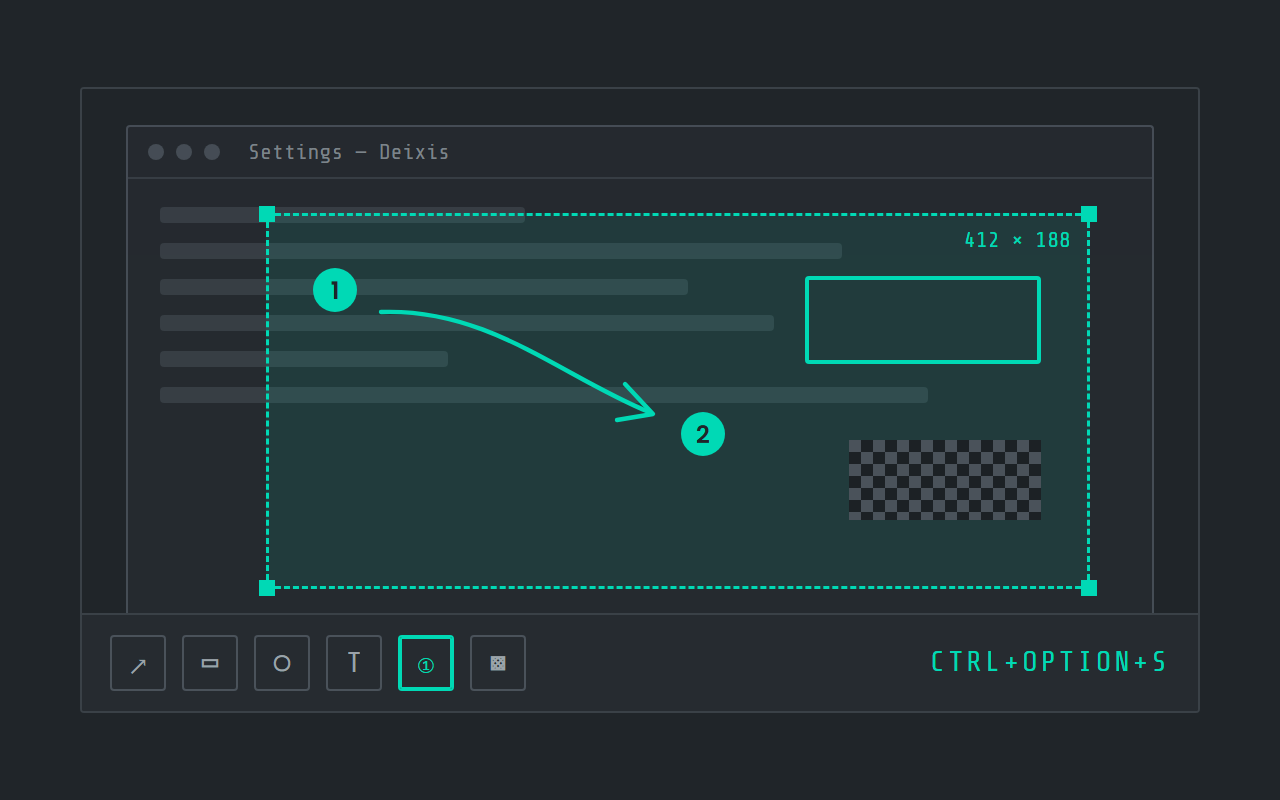
Screen grabs, annotated
Freeze the screen at the keypress, drag a region, add arrows, boxes, text and numbered steps, and pixelate what is private. Saved as a PNG in a folder you own.
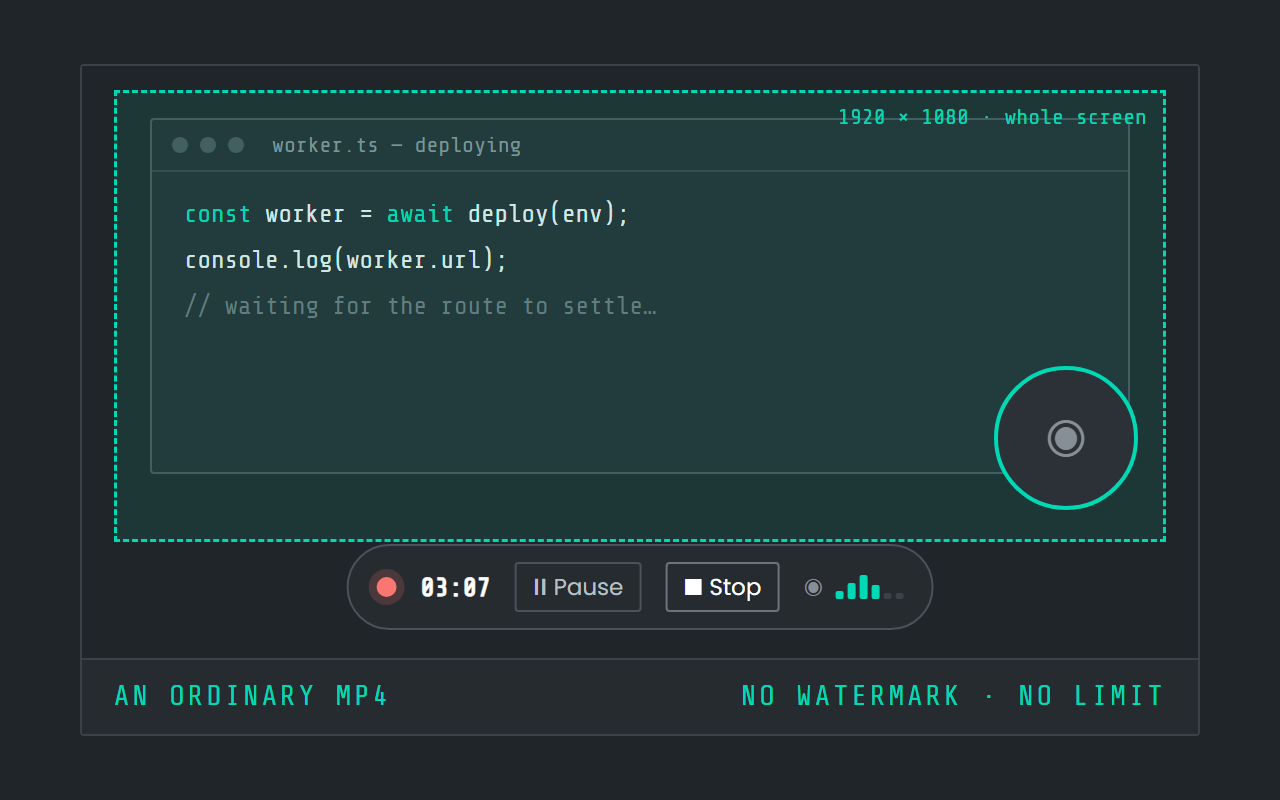
Screen recording
Record the screen, pause when you need to, and stop. The video is a file in a folder on your Mac, not in somebody else's cloud.
Field by field
The same voice, punctuated for wherever you are in VS Code
Deixis knows which app and which field your words are going into — the name of the app and the name of the control, never the window title and never what is on your screen. A prompt, a message and a commit line therefore come out differently. Here is the chat panel, the editor and the integrated terminal, kind by kind.
| Where you are | What you say | What Deixis types |
|---|---|---|
| A prompt to the chat panelthe Chat view, docked beside your code | “um can you pull the fetch call out of use effect and put it behind a hook so the test can stub it” | Can you pull the fetch call out of useEffect and put it behind a hook, so the test can stub it?The filler goes, the sentence gets a capital and a question mark, and your dictionary spells useEffect the way you write it. |
| A comment in a source filethe editor, at the caret in the file you are reading | “note this runs before the router mounts so don't touch the dom in here” | Note: this runs before the router mounts, so don't touch the DOM in here.A comment is punctuated as one line, and "dom" is corrected to DOM on your machine before anything else sees it. |
| A commit messagethe Source Control message box | “add the spare seat count to the team panel it was only showing seats in use” | Add the spare seat count to the team panel: it was only showing seats in use.A commit line is punctuated as a line. The same words in a chat window would come out as two sentences. |
| A pull request descriptionthe PR body on your review site, in a browser tab | “this moves the cleanup call off the hot path so the insert doesn't wait on the network um and it adds a timeout” | This moves the cleanup call off the hot path, so the insert doesn't wait on the network. It also adds a timeout.A long field gets sentences, because Deixis knows it is a body and not a one-line box — and it is the same key you just used in the editor. |
| A message to a colleagueSlack or Teams, in the window you switched to | “the shad kin dialog is fine it was the focus trap in our wrapper that broke” | The shadcn dialog is fine. It was the focus trap in our wrapper that broke.Nothing about this field is an editor, and the key works there anyway. Your dictionary travels with you. |
VS Code facts from setup, voice, settings and copilot, read on 27 September 2026. Everything about Deixis on this page is from its README for the current release.
Worth knowing about VS Code
- VS Code's own setup docs describe it as a free, open-source editor for Windows, macOS and Linux, with a browser version and remote workspaces over SSH, Dev Containers, WSL and Codespaces. Deixis is an extension for none of that: it types at the caret, so it covers the desktop editor and every other window beside it.
- VS Code has dictation of its own, and it is good. Its docs say dictation "uses an on-device speech recognition model by default, so you can dictate without sending audio to an online service", and it works in the Chat and Agents window, in editors and in the integrated terminal.
- It has documented edges. Built-in dictation is there when AI features are enabled, the docs mark it experimental and warn it "might change or be removed", and they list desktop platforms it is not available on — Intel-based Macs, 32-bit and Arm32 systems, and Linux distributions that use musl — where the separate VS Code Speech extension is the answer instead. In VS Code for the Web there is no on-device model: dictation "streams audio to the Microsoft AI voice service for cloud transcription" and "requires a network connection and GitHub sign-in".
- Its cleanup ships on. `dictation.experimental.llmCleanup` defaults to true and "uses a language model to improve punctuation, capitalization, paragraphs, lists, and number formatting in the final transcript"; the voice page says VS Code then sends the transcript text, but not the audio, to a Copilot language model.
- That cleanup model is a Copilot one, and Copilot is tied to a GitHub account: "To use Copilot in VS Code, you need access to GitHub Copilot with your GitHub account." Without a subscription you are signed up for the Copilot Free plan, with a monthly allowance of inline suggestions and AI credits.
- Where VS Code beats Deixis outright: `agents.voice.language` takes a language hint and defaults to `auto`, the system language, so its dictation is not English-only, and terminal dictation adapts speech for the command line, removing ordinary punctuation and converting spoken symbol names. It also has Voice Mode, experimental and rolling out to individual Copilot plans: a spoken conversation with an agent that "reads the agent's responses aloud and listens for follow-up requests". The "Hey Code" keyword is in the separate VS Code Speech extension.
Five minutes
Setting it up
Nothing about your VS Code setup changes. There is no extension to find.
Install and fetch the model
Download the notarized disk image, open it and drag Deixis to Applications. On first launch, press Download once for the speech model; it is checked before it is kept, and from then on dictation works offline. Settings → Updates looks after new versions.
Grant two permissions
macOS asks for two things the first time you dictate: Accessibility, which lets Deixis hear the chord and type into VS Code and every other app, and the microphone. Grant both in System Settings → Privacy & Security. They are Deixis's own, so VS Code needs nothing new. A first screen grab or recording asks for screen recording permission too.
The chord and its letters
Hold Ctrl+Option, speak, release; double-tap it for free mode. VS Code's own dictation sits on
⌘I in chat and ⌥⌘V in an editor, so the two do not collide. Hold the Deixis chord a moment
longer and the palette appears with a letter per mode, S for a grab and V for a recording. If
Ctrl+Option is already taken in your setup, Settings → Hotkey captures a different chord.
Teach it your words
In the Dictionary window, Words to expect is where package and symbol names go, so the recogniser listens for them, and Fixes turns a word it keeps mishearing into the one you meant. Five vocabulary packs ship, and the software development one is on.
Choose what may leave
Settings → Cleanup has three answers: When it helps (the default), Every time and Never. If you give cleanup a model, it can be Deixis's, your own provider key's or one running on your Mac, and it receives text only: the transcript, your vocabulary, what you last dictated into that field, and the names of the app and the field. The audio is never sent, under any setting.
Before you ask
Questions people search for
Does VS Code have dictation of its own on a Mac?
Yes, on Apple Silicon. Microsoft's docs say it uses an on-device speech model by default and works in chat, in editors and in the integrated terminal. It needs AI features enabled, it is marked experimental, and it is not available on Intel-based Macs. In VS Code for the Web it streams your audio to a Microsoft cloud service instead, and needs a GitHub sign-in there.
Which one should I use?
If you dictate in a language other than English, or you only ever dictate inside the editor, use theirs. Use Deixis if you want the same chord in your browser, your tracker and your chat as well as in VS Code, if you want dictation that is a product rather than an experiment, or if you want cleanup to stay on rules unless you choose otherwise. Running both is fine.
Do I need an extension?
No. Deixis is an app on your Mac, not a VS Code extension. It types at the caret of whatever has focus, so it works the same in VS Code, in another editor and in apps that take no plugins at all.
Can I dictate into the integrated terminal?
Yes. A terminal prompt is a caret like any other, so a commit message or an answer to a prompt works well. A spoken command still comes back as words with a capital letter, though; converting speech into command syntax is something VS Code's terminal dictation does and Deixis does not.
Does the cloud ever see my code?
No. Your code is never sent, and neither is your audio or your screen. What cleanup may send is the text you dictated, and only once a model is set up: the transcript, your vocabulary terms, what you last dictated into that field, and the names of the app and the control. Set cleanup to Never, or point it at a model on your own Mac, and no dictated text leaves at all.
Keep reading
Related pages
How to type by voice in any app on a Mac, with the speech recognised on the Mac itself
How to type by voice in any app on a Mac: hold Ctrl+Option, speak, let go. Speech recognition runs on your Mac, free and with no account.
Dictation on a Mac, compared with Deixis
MacWhisper, Superwhisper, VoiceInk, Wispr Flow and Apple Dictation, set beside Deixis on a Mac: where speech is recognised, what leaves, the price.
Dictation for Terminal and iTerm2 on a Mac
Hold Ctrl+Option and speak into Terminal or iTerm2 on your Mac. Agent prompts, commit messages and heredocs, recognised on the Mac, with no account.
Voice dictation for Obsidian on a Mac
Hold Ctrl+Option and talk into any Obsidian note on your Mac. No plugin, speech recognised on the Mac itself, and Markdown notes you own. Free.
Dictation for Slack on a Mac
Hold Ctrl+Option and speak into Slack on your Mac: replies, threads, DMs and canvases. Speech recognised on the Mac, with no account and no admin.
Dictation for Claude Code on a Mac
Hold Ctrl+Option and speak your Claude Code prompt in Terminal, iTerm2 or your editor. Recognised on your Mac, audio never leaves it, no account.
Hold a key. Speak. Keep working.
Deixis is free, needs no account, and runs on your own device. Everything on this page is in the current release.
v1.2.2 · 64‑bit Windows 10/11 · macOS 13 on Apple silicon · 51 MB · nothing else to install · also for Windows
Facts about VS Code checked on 2026-09-27 against code.visualstudio.com. Deixis facts are from its README for the current release. Something out of date? Tell us.